This month brings a wide range of enhancements across the Fabric platform—from improvements to the OneLake Catalog and developer experiences, to meaningful updates in Data Engineering, Data Factory, Real‑Time Intelligence, and more. Whether you’re building, operating, or scaling solutions in Fabric, there’s plenty here to explore. And with FabCon just weeks away, February’s updates are a great preview of what’s ahead.
Don’t miss your chance to get Fabric certified for FREE
If you are ready to take your Fabric exam in the next month, the Fabric team would like to give you a 100% voucher to cover the cost.
Request a voucher by February 28, 2026. Terms and conditions apply.
Three weeks until FabCon – will we see you there?
Join us for the ultimate Power BI, Microsoft Fabric SQL, Real-Time Intelligence, AI, and Databases community-led event from March 16-20, 2026, in Atlanta, GA. The third annual FabCon Americas will feature sessions from your favorite Microsoft and community speakers, keynotes, more opportunities to Ask the Experts for 1:1 support, an engaging community lounge with opportunities to network and connect with your peers, a dedicated partner pre-day, a packed expo hall, attendee favorites Power Hour and the Data Viz World Championships live finals, and a can’t-miss attendee party at the Georgia Aquarium.
Register with code FABCOMM to save $200.
Contents
-
- Fabric Platform
- Workspace Apps now in the OneLake Catalog
- Streamlined item details
- Managing Fabric Identity limits within your tenant
- Horizontal Tab Display Settings
- Enhanced notebook version history with multiple sources
- Python notebooks add %run support
- Full size mode in Fabric notebook 11
- Announcing Private Link Support for Microsoft Fabric API for GraphQL
- CI/CD for API for GraphQL (Generally Available)
- Support for default arguments for Fabric user data functions
- Microsoft ODBC Driver for Microsoft Fabric Data Engineering (Preview)
- Customer Managed Key Encryption Support for Notebook Code
- Effortless Real-Time Data Connection
- Streaming real-time data from private networks into RTI with Eventstream connectors
- Faster insights: real-time dashboard performance improvements
- Recent data: Get back to your data faster (Preview)
- Improvements to the Fabric variable libraries integration in Dataflow Gen2
- Relative references with Fabric connectors in Dataflow Gen2
- Introducing Dataflow Gen2’s just-in-time publishing mechanism
- Modern Evaluator for Dataflow Gen2 (Generally Available)
- Incremental copy from Fabric Lakehouse now supports both CDF and watermark-based methods in Copy job
- SAP Datasphere outbound for Amazon S3 and Google cloud storage in Copy job
- Column Mapping in CDC for Copy Job
- Rowversion now supported as an incremental column in SQL database Copy job
- Copy job activity now supports Service Principal and Workspace identity authentication
- Parallel Read Support for Large CSV Dataset
- Adaptive Performance Tuning: Intelligent Optimization for Data Movement (Preview)
February Monthly Update Video
Fabric Platform
Workspace Apps now in the OneLake Catalog
Workspace Apps (Apps V2) are now supported in the OneLake Catalog, so you can discover, browse, and open apps directly from the Insights category. This category focuses on business-ready content designed to help you analyze, visualize, and report on data to drive actionable insights.
With this update, Workspace Apps appear alongside other business-facing content such as organizational apps and reports, making it easier to explore all relevant insights in one place without needing to switch between different experiences.
The Catalog also surfaces key metadata for each Workspace App, helping you quickly understand what the app contains before opening it. From there, you can open the app directly and start exploring insights right away.
With the addition of Workspace Apps, the OneLake Catalog now includes all item types available in Microsoft Fabric, making it the central place to discover, understand, and access your Fabric content.
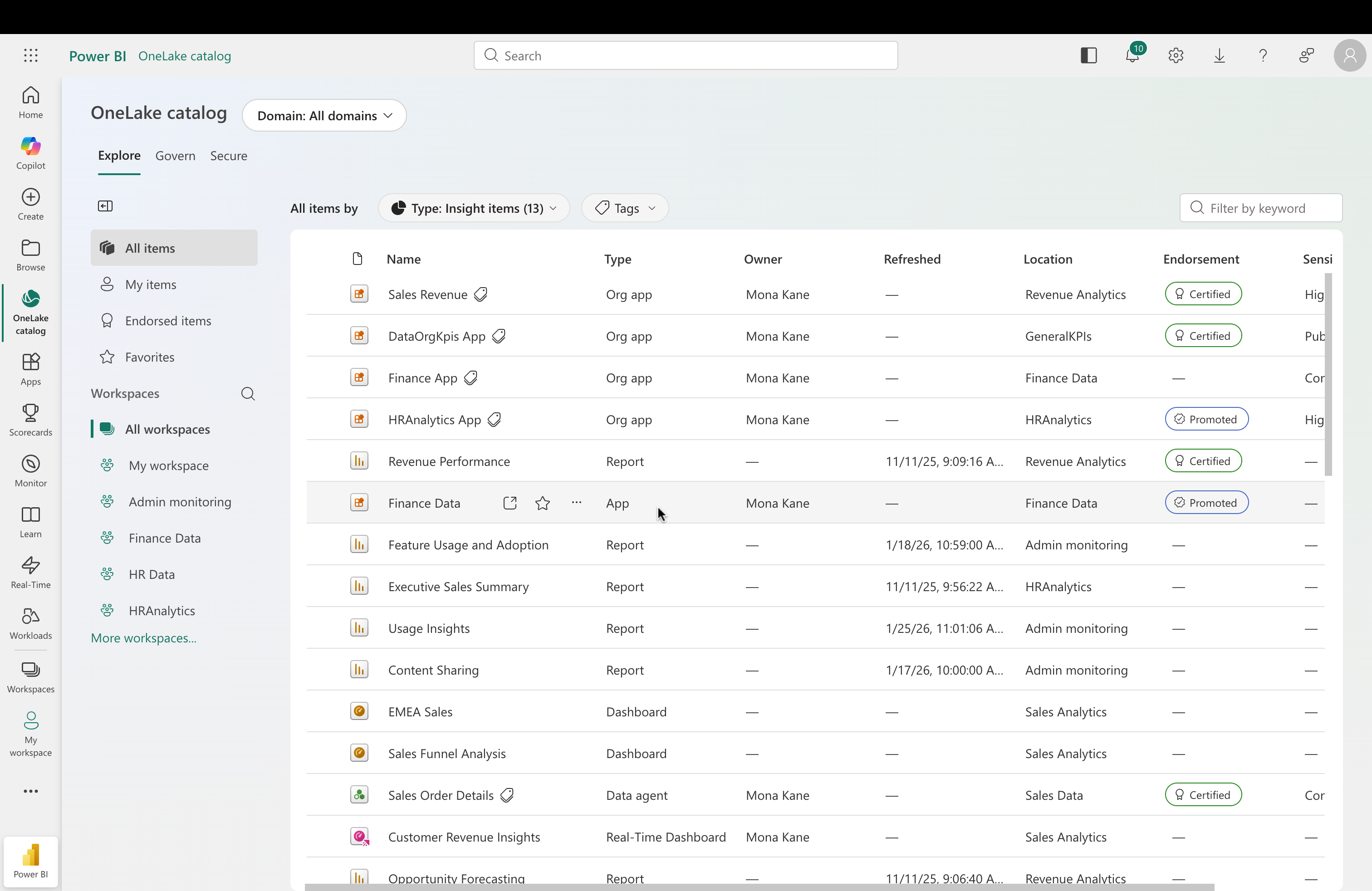
Figure: Workspace Apps displayed in the OneLake Catalog under the Insights category.
Learn more about the OneLake catalog in the OneLake catalog overview documentation.
Streamlined item details
The updated Item Details experience now extends beyond the OneLake Catalog to include full-page experiences for items accessed from outside the catalog. For example, when you open a Semantic Model directly from Workspaces, you will now see a modern, unified details page that matches the streamlined in-context experience found within the OneLake Catalog.
This update brings a consistent design language across Fabric, offering improved usability and access to richer metadata: the enhanced details page now features the complete schema of all OneLake stored data items, making it easier to understand item characteristics.
It also shows and visualizes item-level lineage, managing permissions and monitoring run/refresh history, all in one place. You can quickly find this key information, whether they’re navigating through the catalog or opening items in a standalone context.
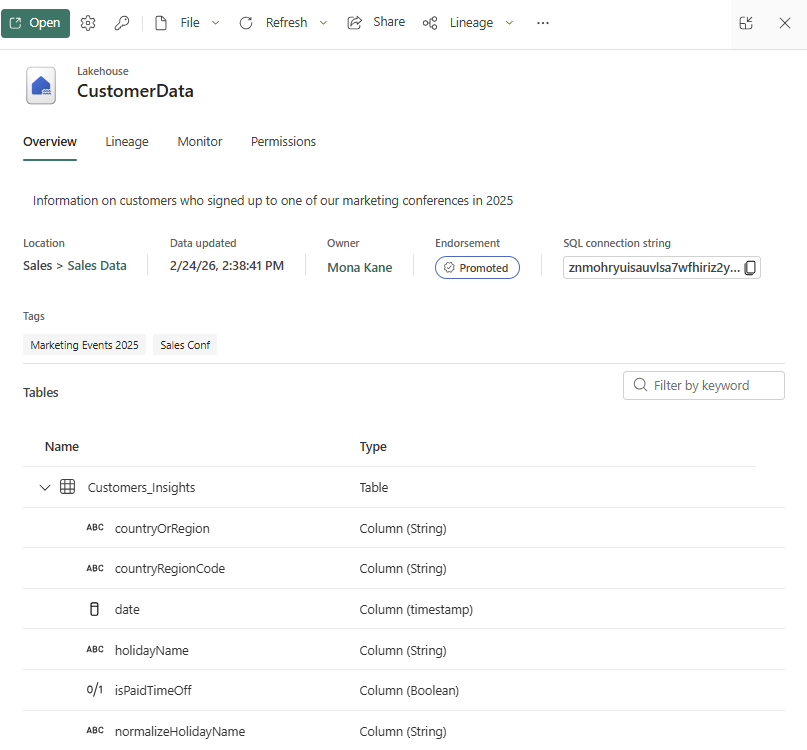
Figure: A Lakehouse in the new item details experience
Managing Fabric Identity limits within your tenant
Fabric Identity governance at scale just got easier. We are introducing a new tenant admin setting that gives you control over the maximum number of Fabric identities (hence Workspace identities) in your organization.
With this update, Fabric tenant admins can:
- Scale beyond previous constraint—the default limit for number of Fabric identities in an organization increases from 1,000 to 10,000 identities.
- Set custom limits for how many Fabric identities can be created in their tenant.
- Manage limits programmatically by using the Update Tenant Setting REST API.
How it works:
The new setting “Define maximum number of Fabric identities in a tenant” is in the Fabric Admin portal in Tenant settings, within Developer settings.
When the setting is disabled (the default), your tenant supports up to 10,000 Fabric identities—a 10x increase from the previous limit. Enable the setting to specify your own maximum. The value you enter becomes the upper limit for Fabric identity creation across your tenant.
Note: Fabric doesn’t validate that your custom limit falls within your Entra ID resource quota. Before setting a custom limit, check your organizations Entra ID service limits.
If a workspace admin tries to create a new workspace identity that would exceed the limit, they’ll see a clear error message explaining the reason.
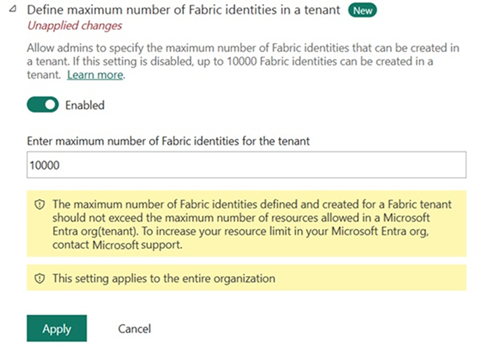
Figure: Configuring Maximum number of Fabric Identities in a tenant.
You can also manage this setting programmatically using the Update Tenant Setting API.
Sample HTTP request:
To learn more about identities in Fabric, see the documentation.
For more information about all the tenant admin settings in Fabric, see the Tenant settings index.
Horizontal Tab Display Settings
To give developers more control over how they navigate open items in Microsoft Fabric, we’ve introduced new horizontal tab display settings. These settings let you tailor how tabs appear across the top of the Fabric interface—helping you stay organized and maintain focus during complex multitasking workflows.
What’s new:
Open the tab settings menu to quickly access tab display options by right‑clicking any tab.
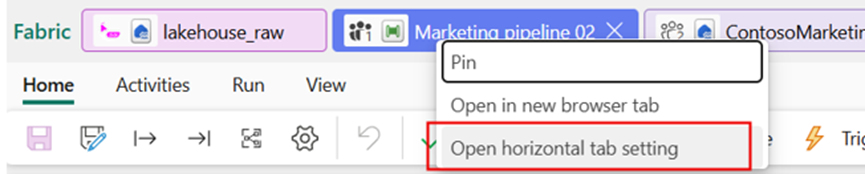
Figure: Open the horizontal tab display settings directly from a tab’s right-click menu.
Two display modes
-
- Full tab names always show each tab’s full name for maximum clarity.
- Adaptive truncated names automatically shorten names when space is limited, allowing more tabs to remain visible.
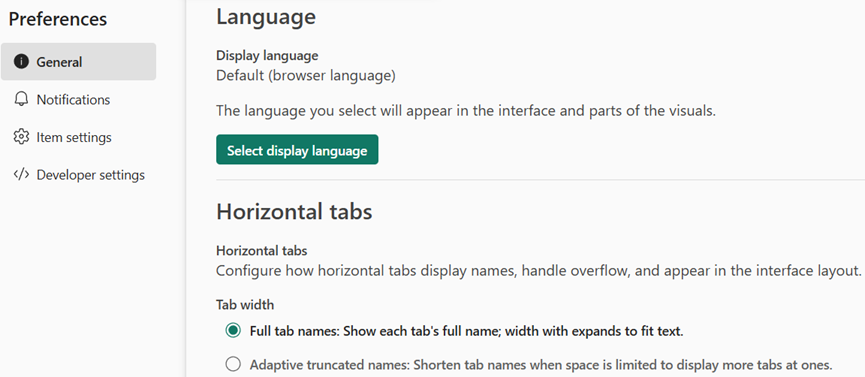
Figure: Horizontal tab display modes, including full tab names and adaptive truncated names, configured in Preferences page in Settings.
Overflow menu
When space runs out, tabs automatically collapse into a clean overflow list, making it easy to jump to any open item.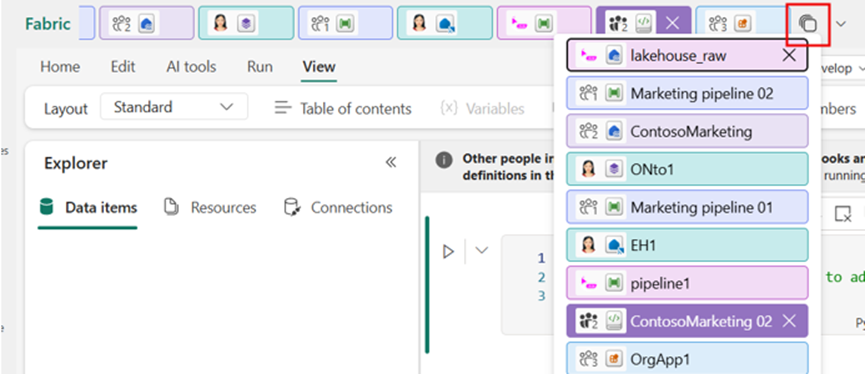
Figure: Tabs automatically move into an overflow menu when there is insufficient space in the horizontal tab bar.
These enhancements streamline navigation for developers working across multiple items and workspaces, reducing friction and improving overall multitasking efficiency. Find more details in this documentation.
Data Engineering
Enhanced notebook version history with multiple sources
Keeping track of how a notebook evolves gets tricky when changes can come from different entry points—editing in the Fabric portal, syncing from source control, or other update flows. Fabric notebooks seamlessly integrate with Git, deployment pipelines, and Visual Studio Code. Each saved version is automatically captured in the notebook’s version history. Versions may originate from direct edits within the notebook, Git synchronizations, deployment pipeline, or publishing via VS Code. The source of each version is clearly labeled in version history to provide full traceability.
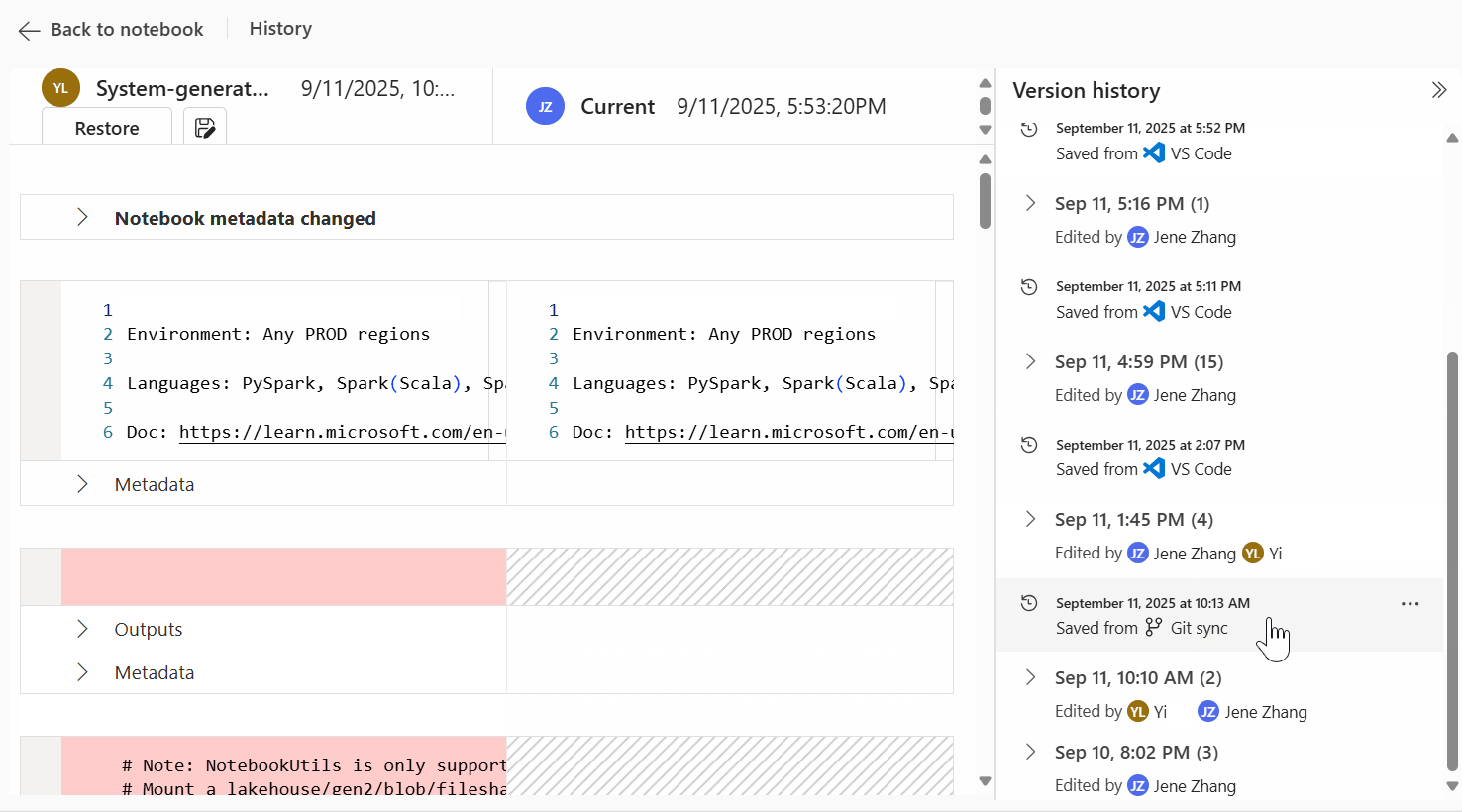 Figure: Multiple sources records in notebook version history
With the Enhanced Notebook Version History with Multiple Sources support, Fabric Notebooks now surface a clearer, more trustworthy history by reflecting versions from multiple origins, helping you trace changes, collaborate with confidence, and roll back to the right point when needed. Especially in CI/CD workflows (Git sync, deployment pipeline, public API), and team-authored workflows.
Learn more about version history in the Version history documentation.
Python notebooks add %run support
Python developers often want to keep notebooks modular—shared utilities, setup logic, and reusable helpers shouldn’t be copy‑pasted everywhere. Python notebooks now support %run, enabling a familiar pattern for executing shared “code modules” and reusing logic across notebooks. This makes it easier to structure projects cleanly, iterate faster, and maintain common code in a single place.
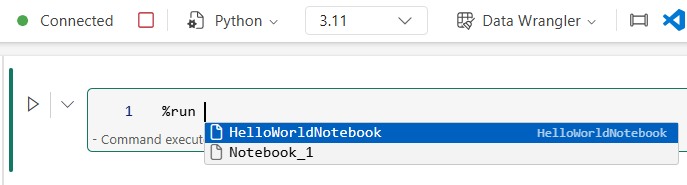 Figure: Reference another python notebook with intellisense
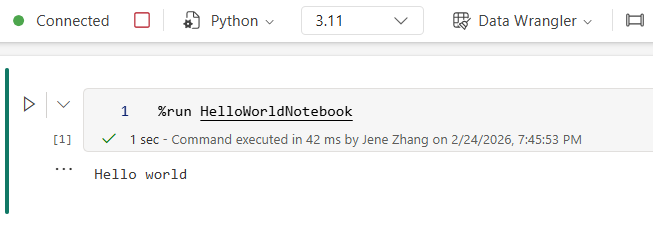 Figure: Reference run python notebook
You can use %run to reference and execute other notebooks within the same execution context, allowing you to directly call functions and reuse variables defined in those notebooks.
Currently, %run in Python notebooks supports referencing notebook items only. Support for running code modules (such as .py files) from the notebook resources folder is coming soon—stay tuned.
You can reference the reference run a notebook documentation for the detailed usage.
Full size mode in Fabric notebook
Full-size mode of cells is now available on Fabric notebook. When you’re working on a long or complex cell, the surrounding UI can get in the way. Full Size Mode lets you expand a single cell to fill the notebook for distraction‑free editing—ideal for deep refactors, large SQL or Python blocks, or screensharing. In full‑size mode, you retain full editing capability, stay focused on the selected cell, and can conveniently navigate to the previous or next cell without leaving the focused view.
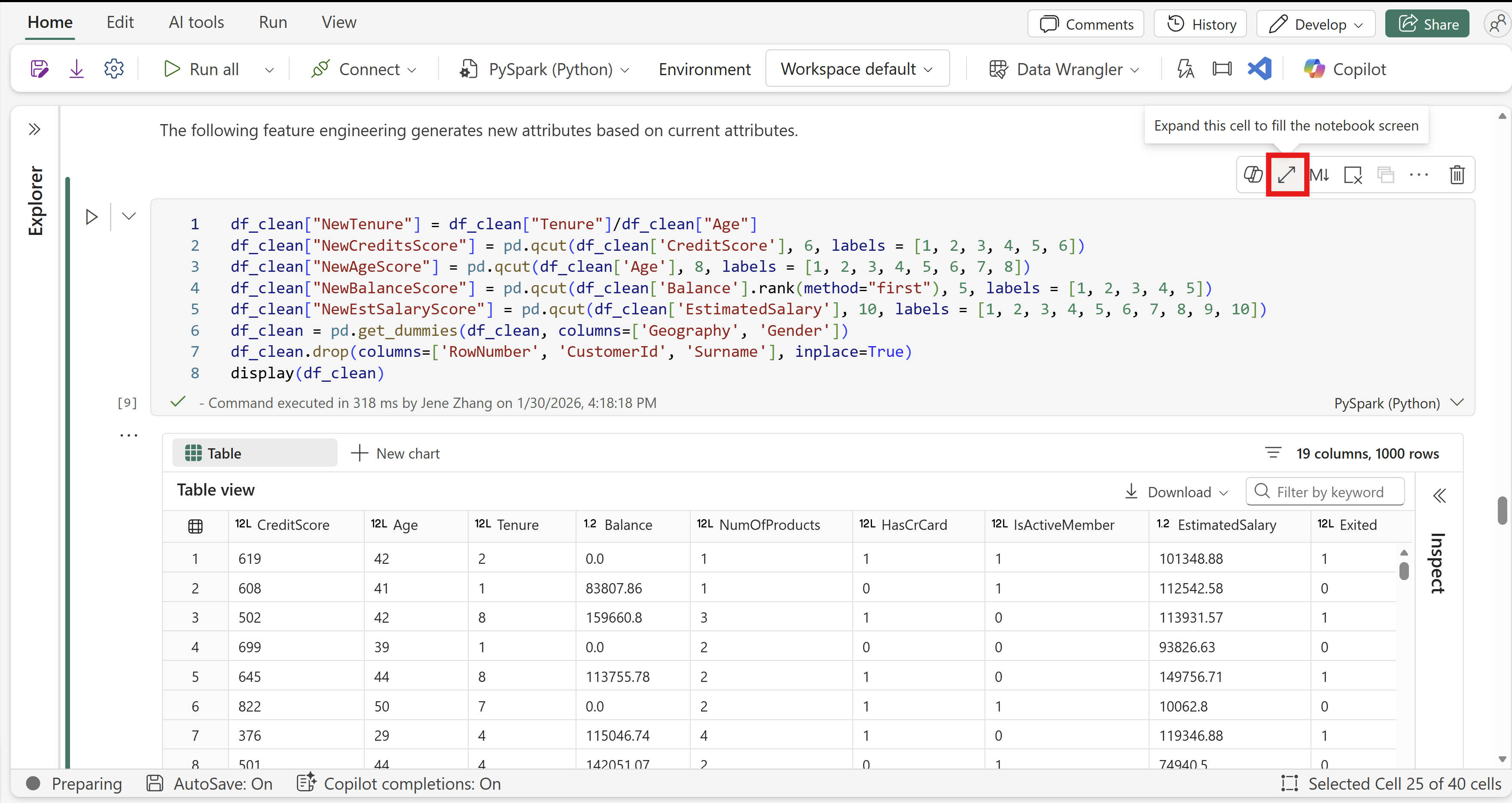
Figure: Enable full size mode on cell toolbar.
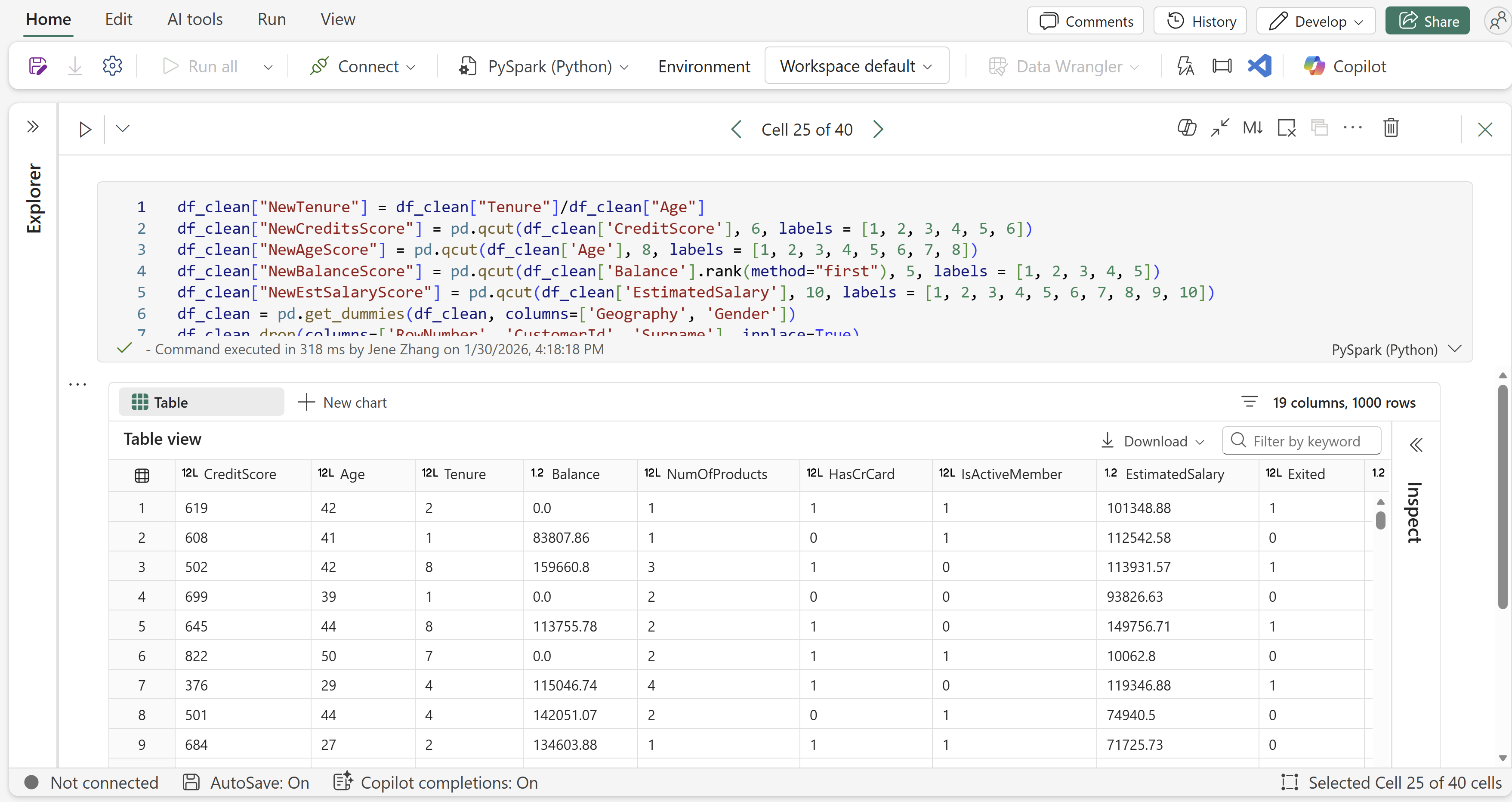
Figure: Example of full-size mode.
Learn more: Develop, execute, and manage notebooks
Announcing Private Link Support for Microsoft Fabric API for GraphQL
Microsoft Fabric API for GraphQL now supports Tenant Level Private Link, bringing enterprise-grade network security to your data APIs. This highly requested feature enables organizations to access their GraphQL APIs through private connectivity, ensuring data traffic never traverses the public internet.
- Secure data access with Private Link: This feature allows organizations to access GraphQL APIs through Microsoft’s private backbone network, improving security by preventing exposure to public internet threats and supporting compliance requirements.
- Simplified network management: Private Link reduces the need for complex firewall rules or VPN setups by allowing API calls only through approved private endpoints, easing governance and integration with existing Azure Private Link infrastructure.
- Enterprise-ready security model: Enabling Private Link at the tenant level integrates GraphQL APIs into a secured network environment complemented by Microsoft Entra ID authentication and flexible security options like single sign-on and saved credentials.
To enable private link, update your tenant admin settings to enable Azure private link.
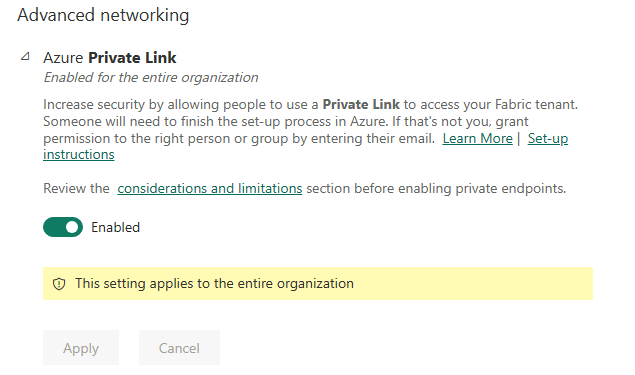
Figure: Enable private link for your tenant
Learn more Private link support for API for GraphQL.
CI/CD for API for GraphQL (Generally Available)
With this release, we have made improvements to reliability and performance on of the experience with Fabric CI/CD and deployment pipelines experience. Your teams can manage GraphQL artifacts in Git, collaborate with familiar pull-request workflows, and promote changes across environments using CI/CD—bringing the same engineering rigor to APIs that you already use for code and data.
With CI/CD support, you can do the following:
- Git-enabled source control for your GraphQL API artifacts so you can version, review, and roll back changes.
- Support with Fabric deployment pipelines that allow you to build release pipelines for managing API for GraphQL items.
- Improved collaboration with pull requests, code reviews, and branching strategies applied to API changes.
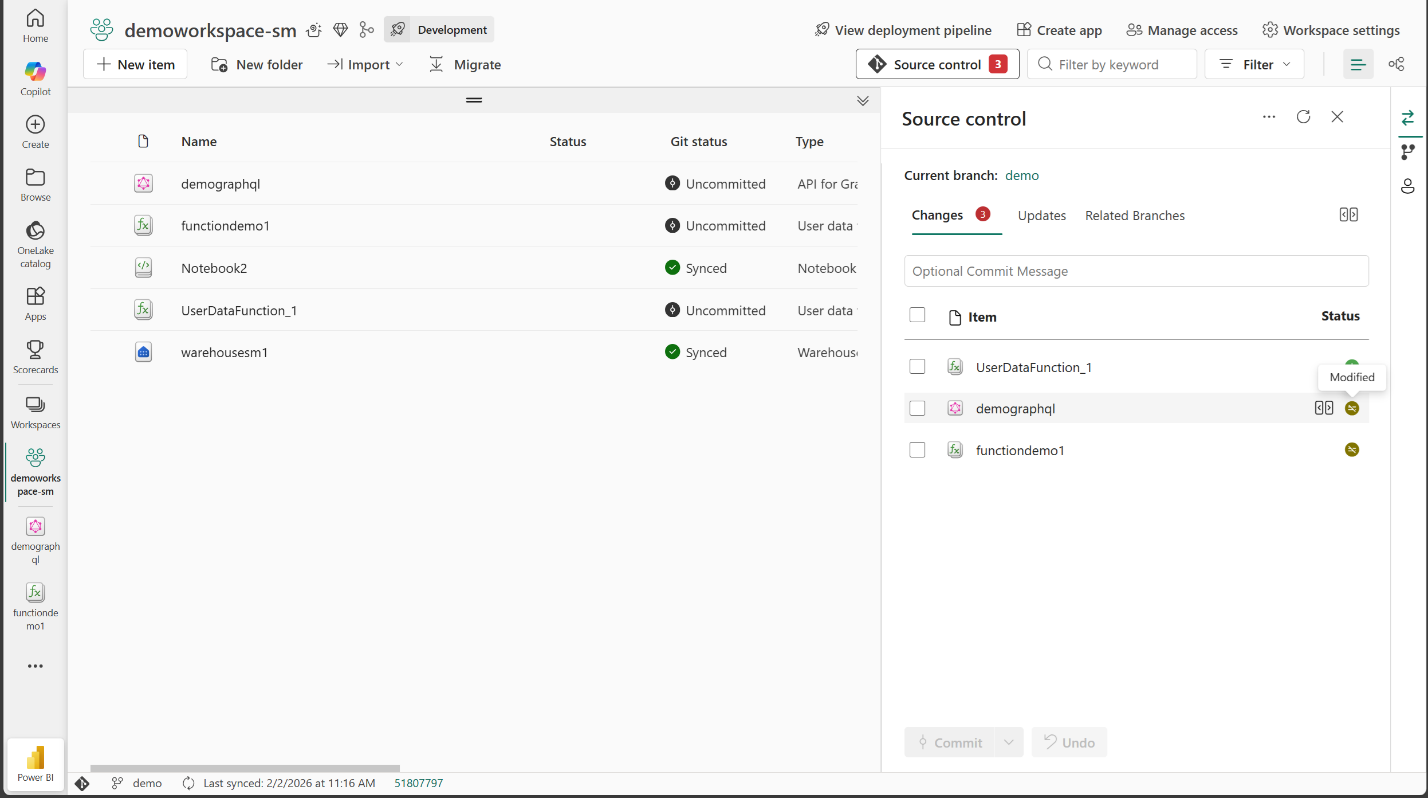
Figure: Screenshot of source control for API for GraphQL
Learn more about API for GraphQL CI/CD and source control.
Support for default arguments for Fabric user data functions
Fabric User data functions now support default argument values, allowing omitted arguments to use preset defaults, which simplifies function calls and enhances code flexibility. This feature supports various input types including strings, boolean, floats, int, arrays, and objects. Functions become more versatile as they can handle common use cases with fewer arguments, while still allowing for customization when needed.
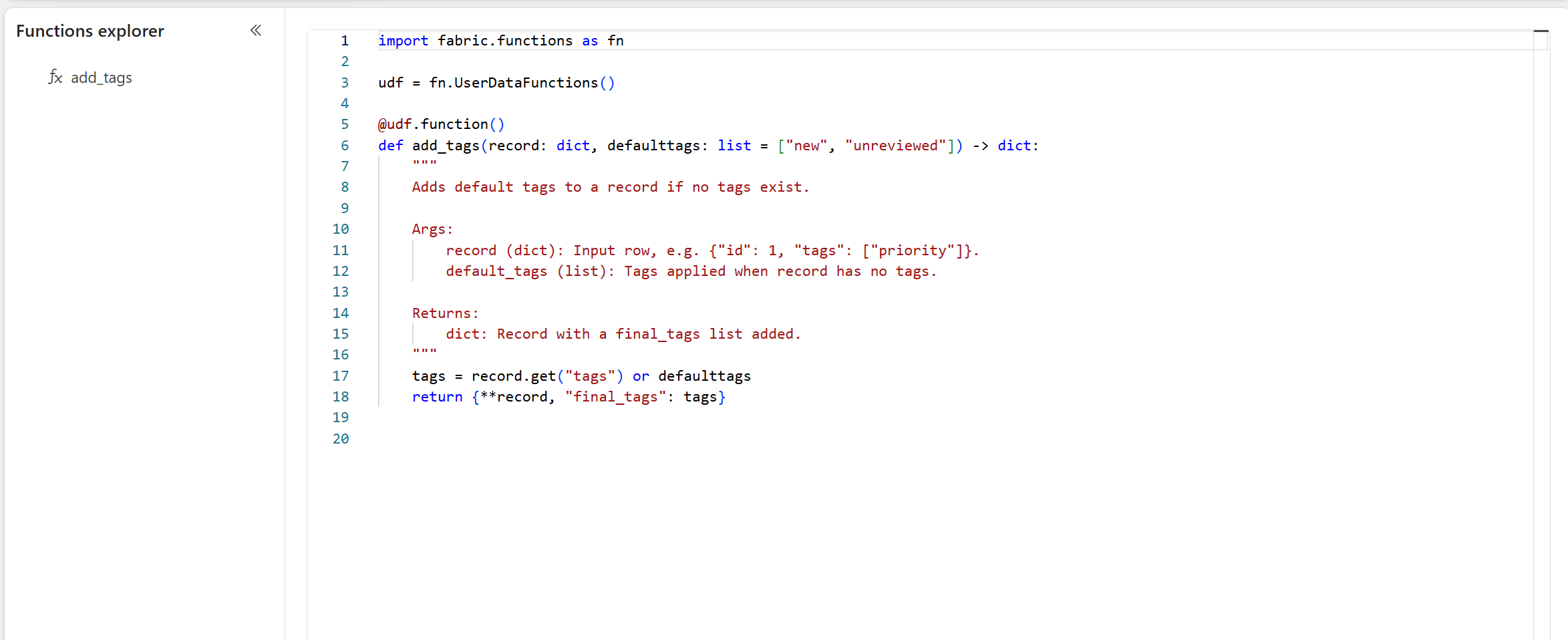
Figure: Code snippet of using function with default arguments
Learn more about default arguments for user data functions.
Microsoft ODBC Driver for Microsoft Fabric Data Engineering (Preview)
ODBC (Open Database Connectivity) is a widely adopted industry standard that enables applications to connect to and work with data across databases and big data platforms. Today, we’re introducing the Microsoft ODBC Driver for Microsoft Fabric Data Engineering (Preview) – an enterprise‑grade connector that delivers secure, reliable, and flexible Spark SQL connectivity for .NET, Python, and other ODBC‑compatible applications and BI tools, all powered through Microsoft Fabric’s Livy APIs.
Built specifically for Fabric Data Engineering, this driver offers deep integration with OneLake and Lakehouse data, supports environment‑based execution, and enables flexible Spark configuration tailored to your workloads. With full ODBC 3.x compliance, Microsoft Entra ID authentication, comprehensive Spark SQL and data type support, performance optimizations for large datasets, and enterprise‑ready features like proxy support and session reuse, the Microsoft ODBC Driver helps teams accelerate Spark‑powered data engineering with the security, reliability, and performance expected in modern enterprise environments.
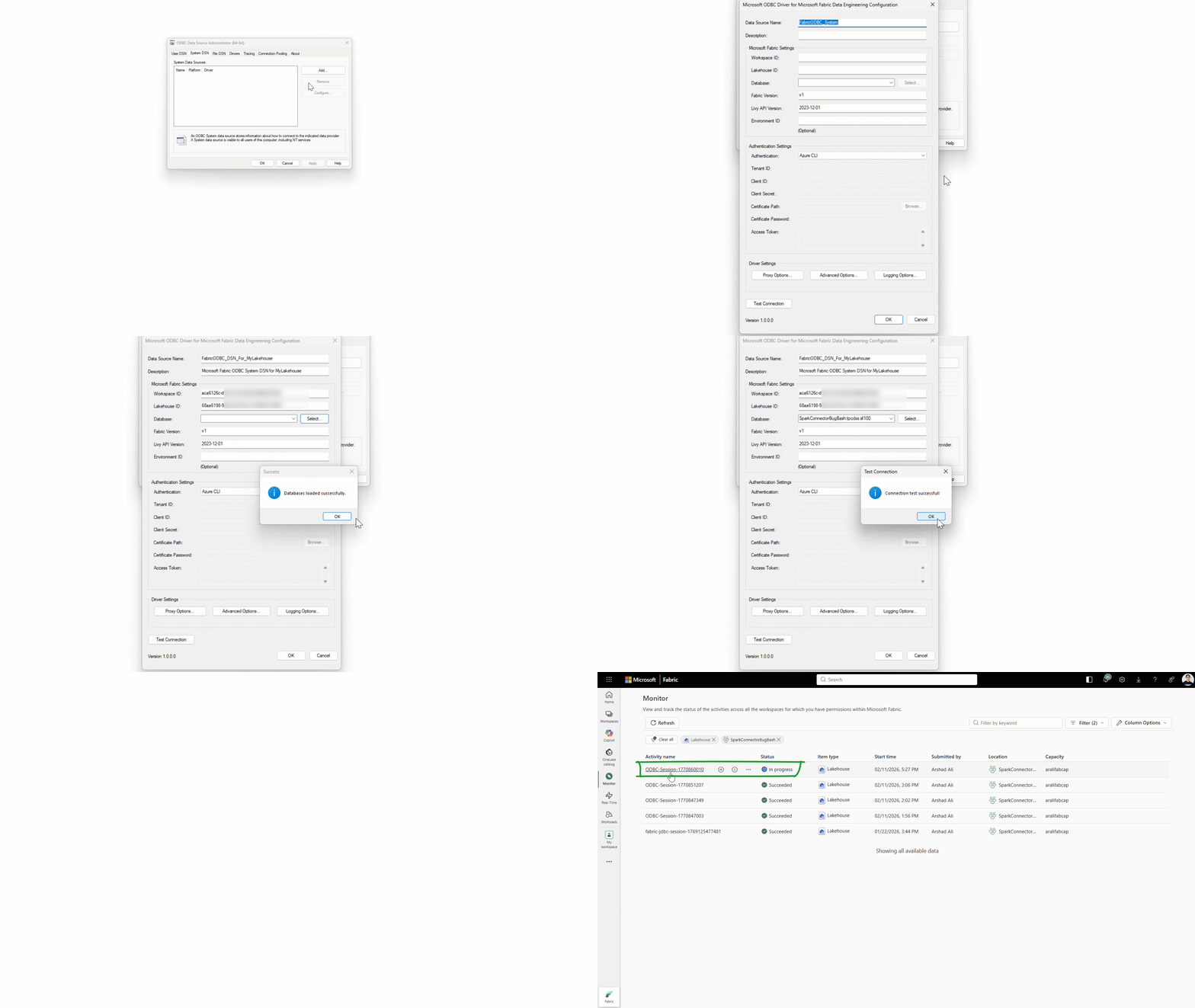
Figure: The animated GIF demonstrates how to get started using ODBC driver
To download and learn more about the Microsoft ODBC Driver for Microsoft Fabric Data Engineering, please refer to official documentation: Microsoft ODBC Driver for Microsoft Fabric Data Engineering.
Customer Managed Key Encryption Support for Notebook Code
Enterprise teams can now run Microsoft Fabric Notebooks in CMK‑enabled workspaces with Notebook content and metadata encrypted at rest using customer‑owned keys in Azure Key Vault, supporting stricter governance and compliance requirements without changing developer workflows.
What’s new: Notebooks are fully supported in CMK‑enabled workspaces
With this update, Notebooks can be created and used in workspaces where CMK encryption is enabled, and the Notebook content and associated Notebook metadata stored as part of Data Engineering items are protected using the workspace’s customer‑managed key.
Concretely, this covers core Notebook content artifacts such as cell source, cell output, and cell attachments, so the key you control can be applied consistently to what developers author and what the system stores for notebook execution and collaboration.
To enable CMK for your Fabric workspace (and use Notebooks in that CMK‑enabled workspace), follow the official documentation: Customer‑managed keys for Fabric workspaces
Data Science
Semantic Link 0.13.0 is Live
With the 0.13.0 release, Semantic Link continues to expand its Fabric coverage and management capabilities. This update introduces new modules for lakehouse, reports, semantic models, SQL endpoints, and Spark, enabling end‑to‑end workspace operations—from creating and managing lakehouses and tables, to cloning and rebinding reports, refreshing and monitoring semantic models, and administering SQL and Spark settings.
Several Fabric APIs are now surfaced consistently across modules, simplifying common workflows and improving API discoverability. The release also includes targeted API refinements and bug fixes, improving reliability for service principal authentication and correctness when evaluating measures. Overall, 0.13.0 makes it easier to manage Fabric assets programmatically at scale with stronger consistency and control. Explore the release notes.
To help you explore these scenarios in practice, we’ve also published three short demos showcasing Sempy for data science, Sempy for Power BI automation, and Sempy for data engineering, illustrating how Semantic Link can unify workflows across personas and accelerate development within Fabric.
Cast your vote for additional capabilities from Semantic Link Labs to be included in Semantic Link.
Monitoring Real-Time Scoring Model Endpoints
The new monitoring experience for real‑time scoring endpoints in Microsoft Fabric provides clear visibility into request volume, error rates, and latency as models run in production. Teams can easily compare these metrics across endpoint versions to validate improvements, catch regressions early, and make confident rollout or rollback decisions based on real usage. From tracking adoption to diagnosing issues and ensuring consistent performance underload, endpoint monitoring helps teams move faster from insight to action—delivering more reliable ML experiences while staying focused on scaling impact and business value.
Data Warehouse
Export migration summary
Export Migration Summary is a new capability in Migration Assistant that makes it simple, reliable, and secure to download your full migration results in formats that best fit your workflow.
The export option is available directly from the Migration Assistant’s summary view and full screen view.
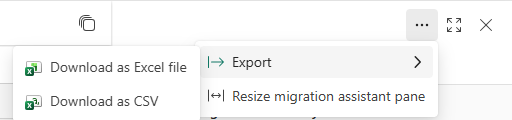
Figure 1: Export menu
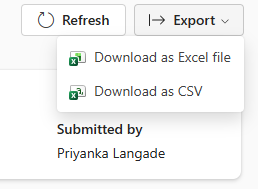
Figure 2: Export file formats
Once triggered, the export runs reliably in the background, even if the Migration Assistant window is closed, ensuring a smooth workflow for large, multi-object migrations. The following output formats are supported:
Excel
- Fully structured workbook with two worksheets: Migrated Objects and Objects To Fix
- MIP-compliant and aligned with your organization’s sensitivity labels.
CSV
- Lightweight and tool-friendly
Each exported file provides a structured, comprehensive view of your migration results, including:
Field
Description
Object name
Name of the SQL object
Object type
SQL object types such as table, view, function, stored procedure.
State
Translation State
- Adjusted: Fabric Data Warehouse compatible updates are applied
- Not adjusted: No change in the original script
Details
List of adjustments applied or error messages
Type of error
Type of error as Translation message, Translation error, Translation apply error
Figure 3: Fields in exported file
This structure enables teams to aggregate migration details at object or object type level and identify patterns across objects.
Export Migration Summary removes a major blocker for customers who need shareable, reliable artifacts that reflect the true state of their migration progress.
Learn more in the Migration Assistant for Fabric Data Warehouse documentation.
SQL Pool Insights
Understanding why workloads slow down often require visibility beyond individual queries. SQL Pool Insights extends the existing Query Insights experience with pool‑level telemetry, helping you understand how resources are allocated and when pools are under pressure in Microsoft Fabric Data Warehouse.
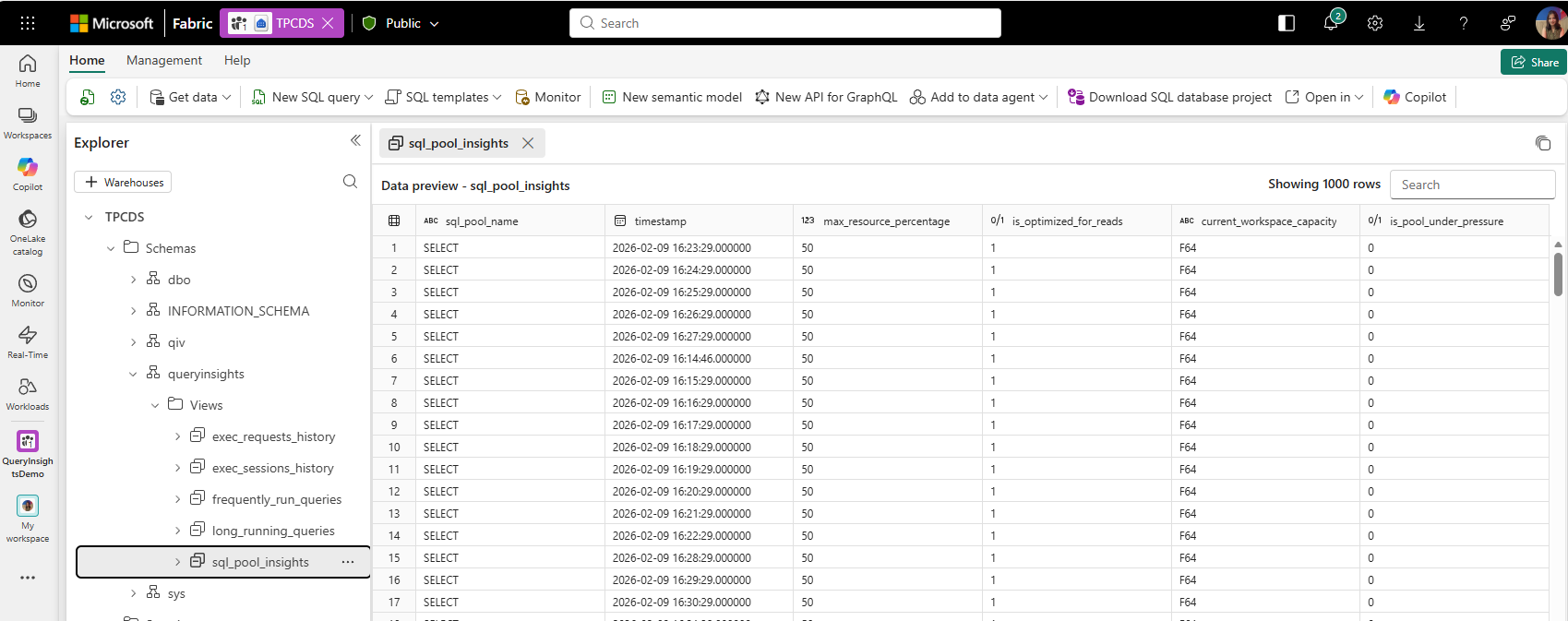 Figure – The image shows the sql_pool_insights schema
With SQL Pool Insights, you can:
Monitor the health of built‑in SELECT and NON SELECT SQL pools.
- Track pressure events, configuration changes, and capacity updates over time.
- Correlate pool‑level pressure with query performance using existing Query Insights views.
- Validate resource isolation between read‑optimized and write‑optimized workloads.
- This feature adds a new system view — queryinsights.sql_pool_insights — that logs pool state changes and sustained pressure events, giving you actionable signals for troubleshooting performance issues and planning capacity more effectively.
Learn more about SQL Pool Insights
Real-Time Intelligence
Effortless Real-Time Data Connection
Connecting data is often the first step on a user’s Real-Time Intelligence journey—and it should be effortless.
Previously, the left navigation in the Real-Time hub (RTH) included two separate entries for connecting data—Data sources and Azure sources. While well intentioned, this distinction didn’t always match how users think about the task at hand. The most common question wasn’t about categories; it was just how to add data.
To better reflect that reality, we’ve unified these entry points into a single menu item: Add data.
With this update:
- There’s now one clear place to begin when connecting data.
- The navigation focuses on intent, not source taxonomy.
- Users can move faster without second‑guessing their choices.
Under the hood, nothing has changed. You still have access to the same rich set of data sources, including all out-of-box data connectors, Azure sources, Azure Diagnostics logs, and more. What’s changed is the experience—clearer, simpler, and designed to help you get value faster.
Note: we are rolling this change out gradually, so you may see it in the coming weeks.
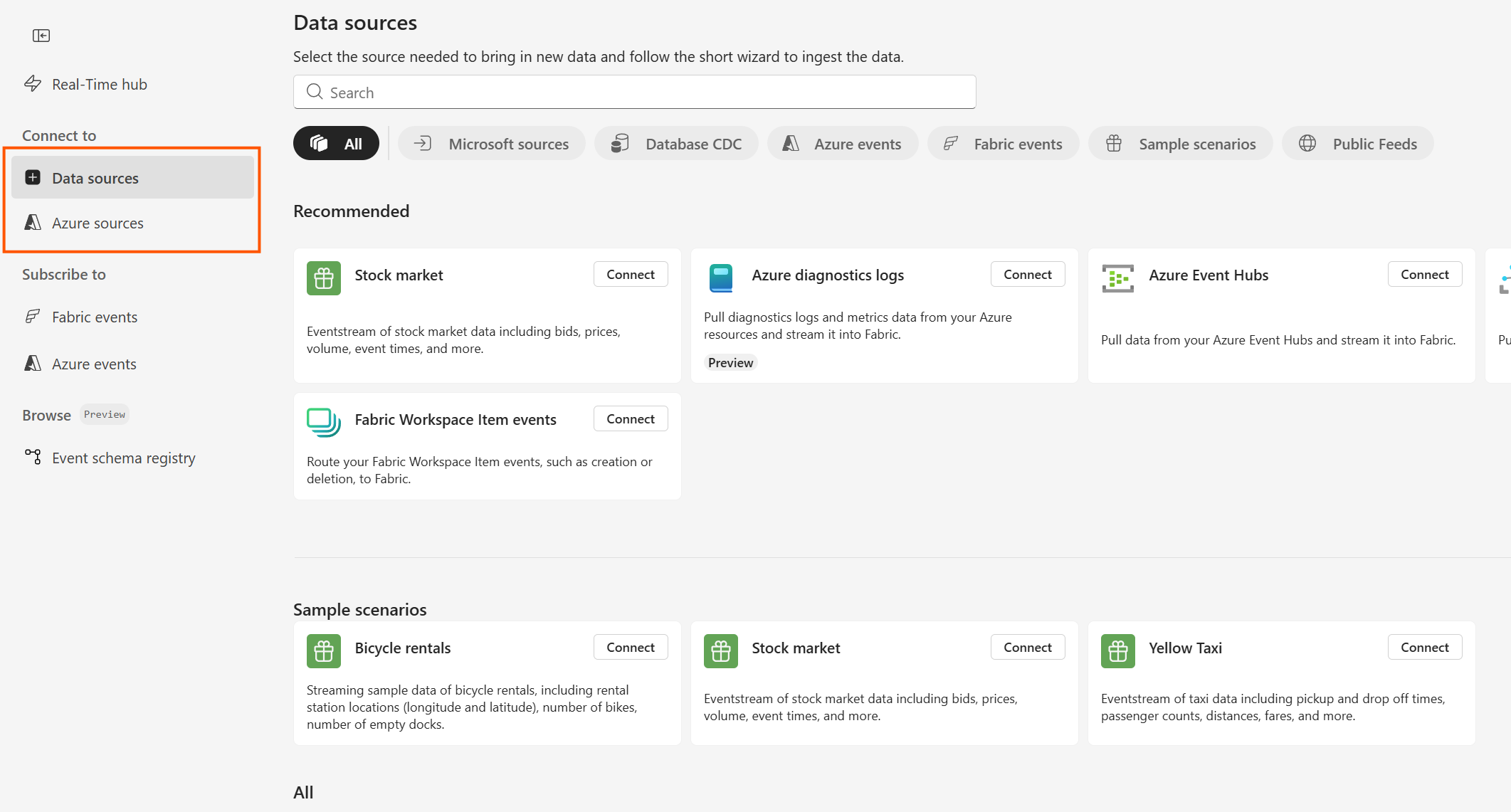
Figure: Real-Time hub left navigation before the change
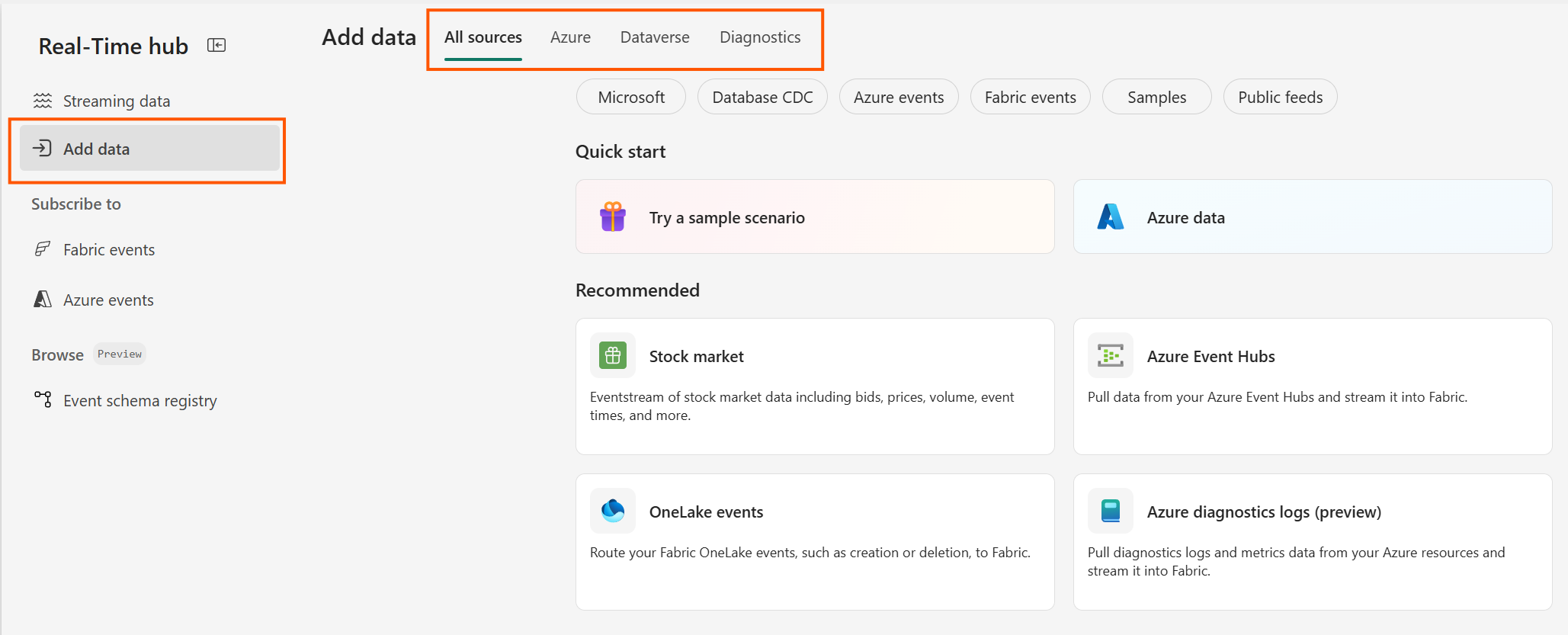 Figure: Real-Time hub left-navigation after the change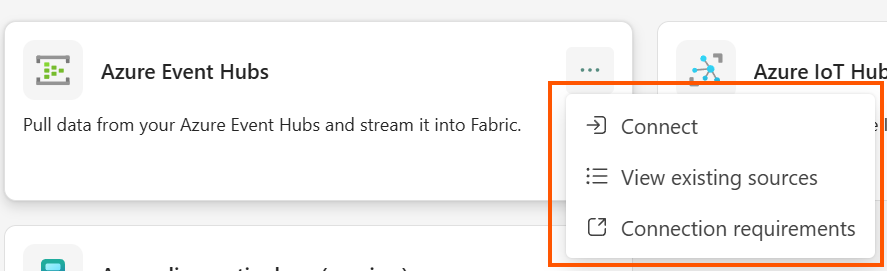
Figure: New data connector context menu
Learn more about Real-Time Hub. Try it out and share your feedback.
Streaming real-time data from private networks into RTI with Eventstream connectors
Real-Time Intelligence Eventstream is designed to bring real-time data from diverse sources, transform it, and effortlessly route it to various destinations. For sources that run in private network environments
,such as cloud virtual network or on-premises infrastructures, a secure method is required to allow Eventstream to access the source.The streaming connector’s support for virtual networks (vNet) and on-premises environments offers a secure, managed pathway, enabling Eventstream to reliably connect with these private-network streaming sources.
To enable data transfer from a source within a private network into Eventstream, it is necessary to establish an Azure managed virtual network as an intermediary bridge, as illustrated in the diagram. The Azure virtual network should be connected to the private network hosting the data source using appropriate methods, such as VPN or ExpressRoute for on-premises scenarios, and private endpoints or network peering for Azure sources, etc. Subsequently, the Eventstream streaming connector instance will be injected into this virtual network through SWIFT injection, allowing secure connectivity between the connector and the data source located within the private network.
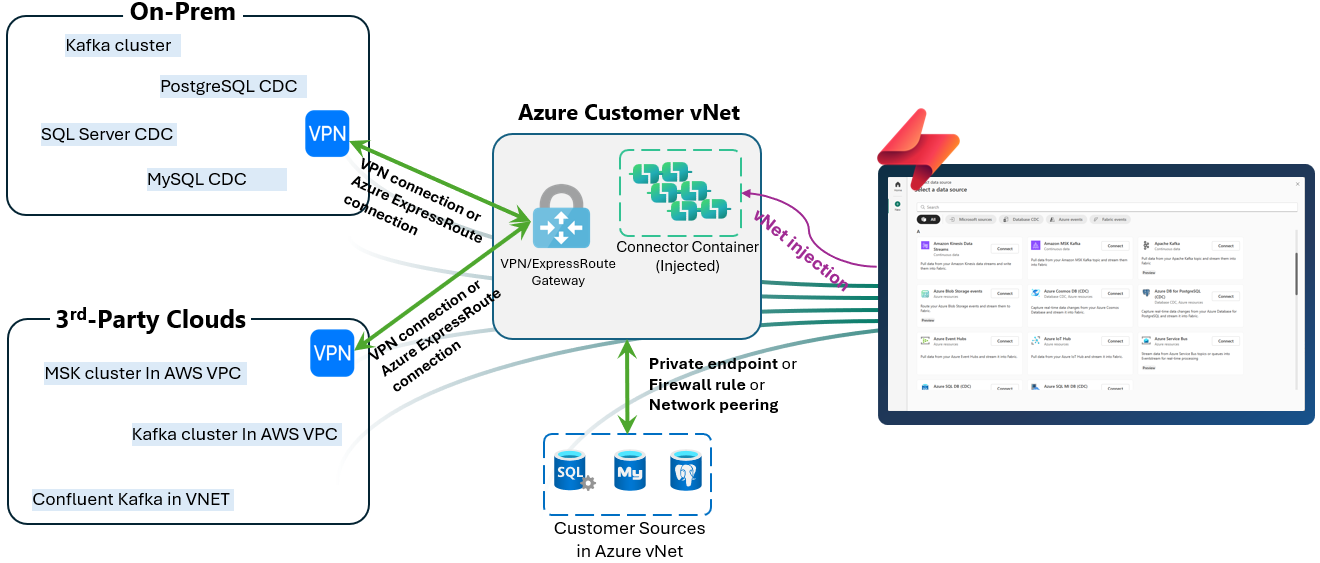
Figure: Eventstream connectors private network support overview
To facilitate streaming connector vNet injection into an Azure virtual network you’ve created, Fabric provides a centralized location for network or data engineers to manage the references to Azure virtual network resources. The streaming virtual network data gateway in Fabric serves this purpose for Eventstream.
Unlike ‘Virtual network data gateways’ and ‘On-premises data gateways’
,this new option does not require cluster provisioning or additional capacity. However, the user experience across all three gateway types remains largely similar. Create and manage the ‘streaming virtual network data gateway’ in the ‘Manage Connections and Gateways’ page in Fabric. Select it when setting up streaming connections for Eventstream sources using the Get Events wizard or ‘Streaming virtual network’. After that, you can configure your Eventstream data source as usual.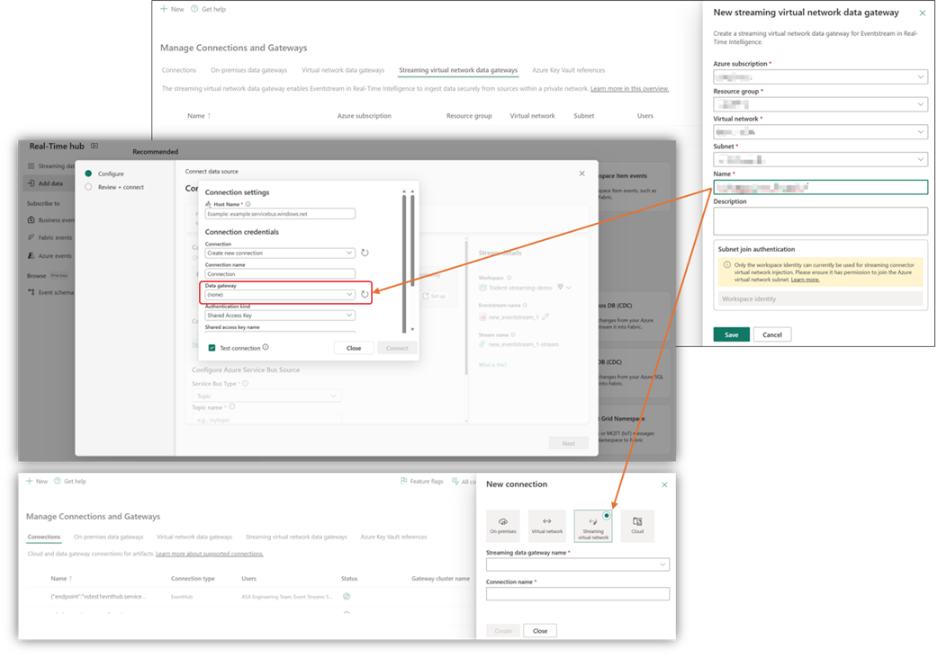
Figure: Streaming virtual network data gateway configuration for Eventstream
To help familiarize yourself with the end-to- end flow of the feature check out this detailed demo on Streaming Real-Time Data from Private Networks into RTI with Evenstream Connectors. For a step-by-step guide on getting started, please refer to the document: Connect to Streaming Sources in Virtual Network or On Premises with Eventstream.
Faster insights: real-time dashboard performance improvements
Based directly on community feedback, we’ve optimized the Real-Time Dashboard from the ground up, ensuring a snappier, high-performance experience.
Thanks to a series of performance optimizations across the dashboard experience, we’ve achieved a significant double-digit reduction in full dashboard load time, along with major improvements in common interactions:‑digit reduction in full dashboard load time, along with major improvements in common interactions:
- Much faster initial dashboard load—in some scenarios, up to 6× faster
- Large dataset visualizations load dramatically quicker, reducing wait time and friction
- Charts render more efficiently (including up to 10× faster pie charts)
- Smoother, more responsive UI, with freezes and visual jumps eliminated
Whether you are loading large datasets or refreshing live visuals, the UI is now smoother and significantly more responsive, ensuring your data keeps pace with your decisions.
Note: The video demonstrates performance benchmarks conducted in a controlled internal environment.
Learn more about What is Real-Time Dashboard?
Data Factory
Recent data: Get back to your data faster (Preview)
When you work with the same data sources repeatedly in Dataflow Gen2, the new Recent data (Preview) module helps you access your most frequently used data faster.
Why this matters
- Provides quick access to frequently used tables, files, folders, databases, sheets, etc.
- Eliminates repetitive navigation steps
- Improves productivity in transforming data by efficiently connecting and ingesting data
How to access Recent data
Getting started is straightforward. Open any Dataflow Gen2 in your Fabric workspace and you’ll find two convenient ways to access Recent data. First, you can select Recent data directly from the Power Query ribbon for immediate access to your history.
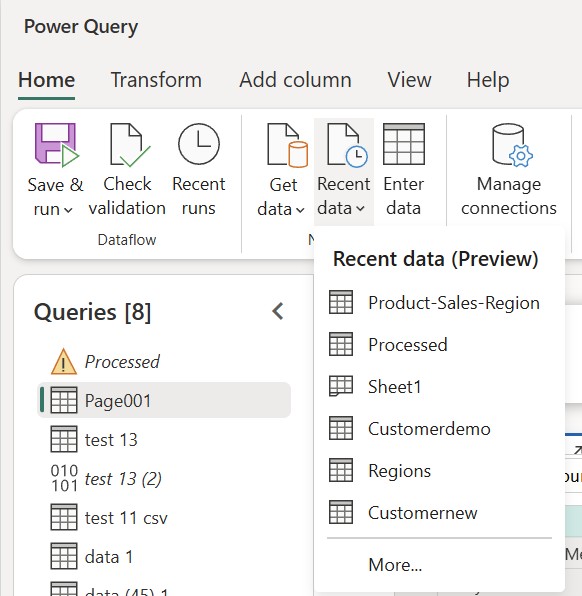
Figure: Recent data in the Power Query Ribbon
Alternatively, select Get data and choose the Recent data module from the home tab or dedicated tab.
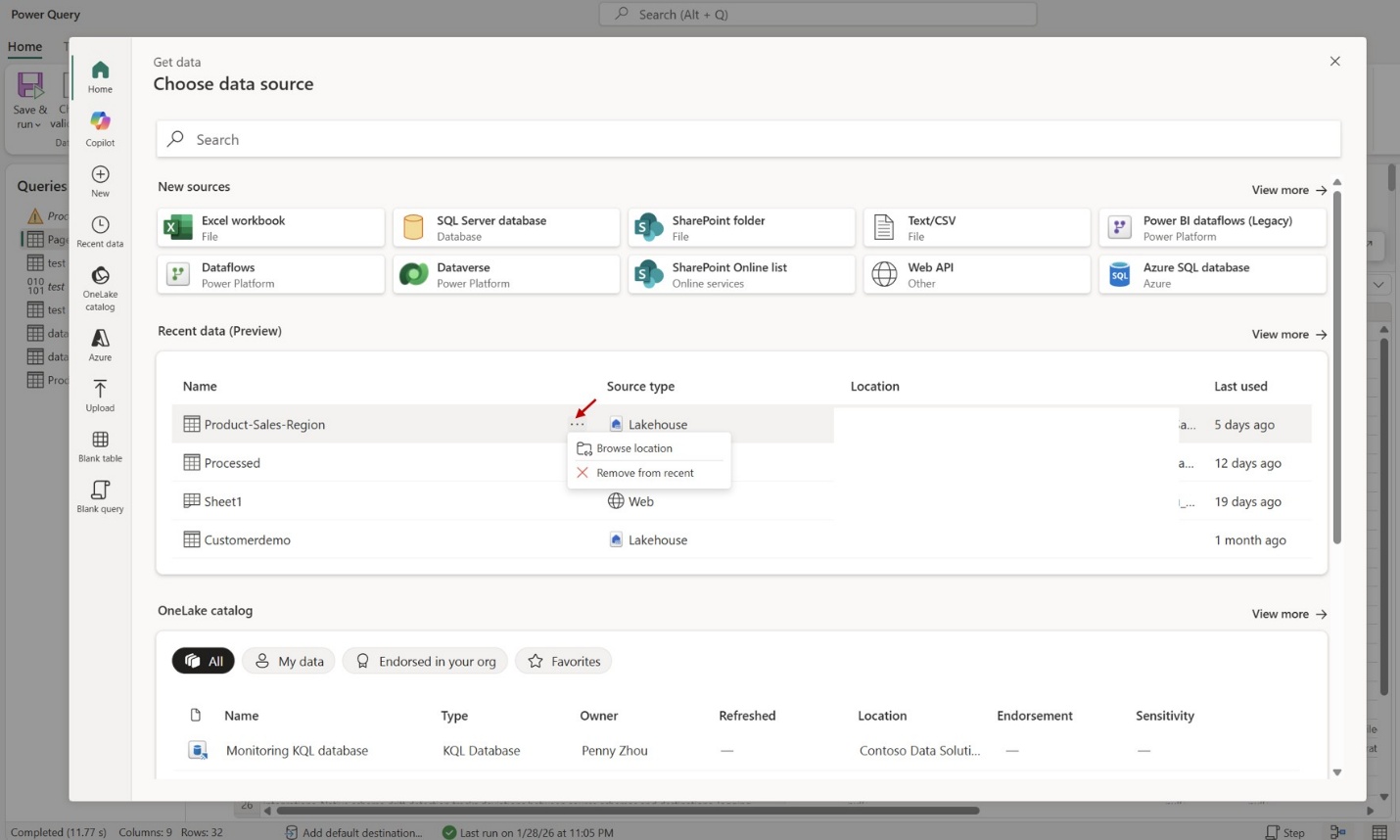
Figure: Recent data in Modern Get Data
When you select an item from your Recent data module, it loads directly into the Power Query editor without additional navigation steps required by default. You can start applying transformations immediately. If you need to explore related items in the same location, select Browse location to discover other tables or files in the same folder or database, making it easy to include additional related data in your dataflow.
This Preview feature is available now, learn more in the Recent data documentation.
Improvements to the Fabric variable libraries integration in Dataflow Gen2
In September 2025, we released a preview of the Fabric variable libraries integration with Dataflow Gen2. This update address two of the most common feedback themes:
- Variable limit: Dataflows no longer have a limit on how many variables it can retrieve per evaluation.
- Power Query editor support: the data preview shown in the Power Query editor evaluates the variables. This includes both the usage of the Variable.Value and Variable.ValueOrDefault functions.
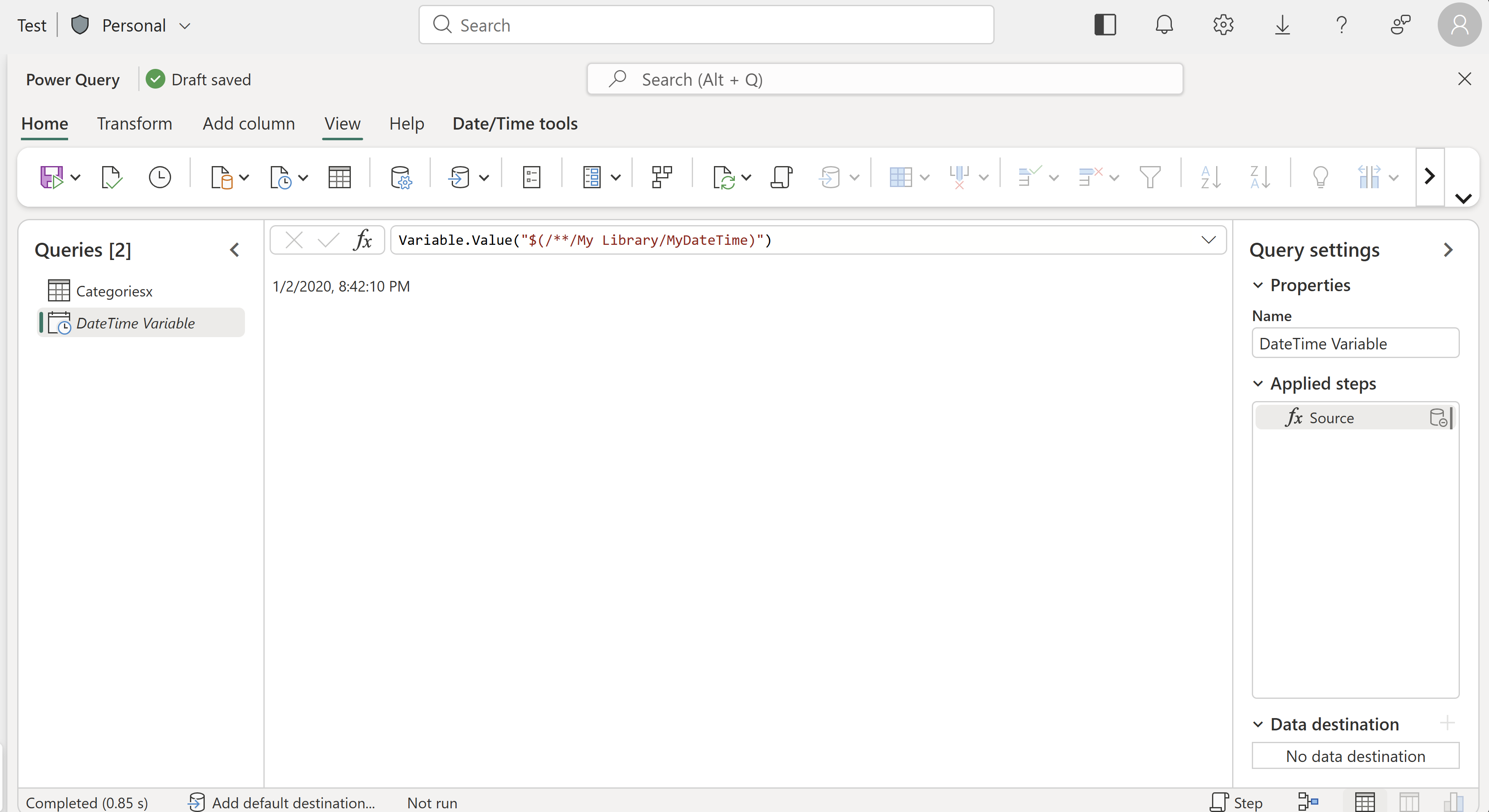
Figure: Screenshot of the Power Query editor for Dataflow Gen2 rendering the output of the Variable.Value function for a Variable Library with the name My Library and a variable with the name MyDateTime
We also identified and fixed issues that caused saving issues when variables were used in data destinations, and we improved the overall Power Query editor experience when variables are used in navigation steps.
We’re continuing to improve our experience and will share updates in the coming months. Be sure to leave your feedback in the Data Factory community forum where you can engage directly with us if you have any questions or suggestions.
Learn more from the Use Fabric variable libraries in Dataflow Gen2 (Preview) documentation.
Relative references with Fabric connectors in Dataflow Gen2
One of the core principles of Fabric and Data Factory is enabling solutions that are CI/CD-ready. In Dataflow Gen2, you can already use public parameters and Fabric variable libraries to make your solutions dynamic and compatible across deployment pipelines.
We’re introducing a new capability to simplify CI/CD scenarios when using Fabric connectors: Relative References.
What’s changing?
Previously, when you used Fabric connectors (Lakehouse, Warehouse, or SQL Database), the generated script relied on absolute references—such as Workspace ID and item IDs (e.g., Lakehouse ID, Warehouse ID).
With Relative References, you’ll see a new node in the navigation dialog called (Current Workspace). This allows you to select items within the current workspace context. Once selected, the script will reference the item name instead of unique IDs.
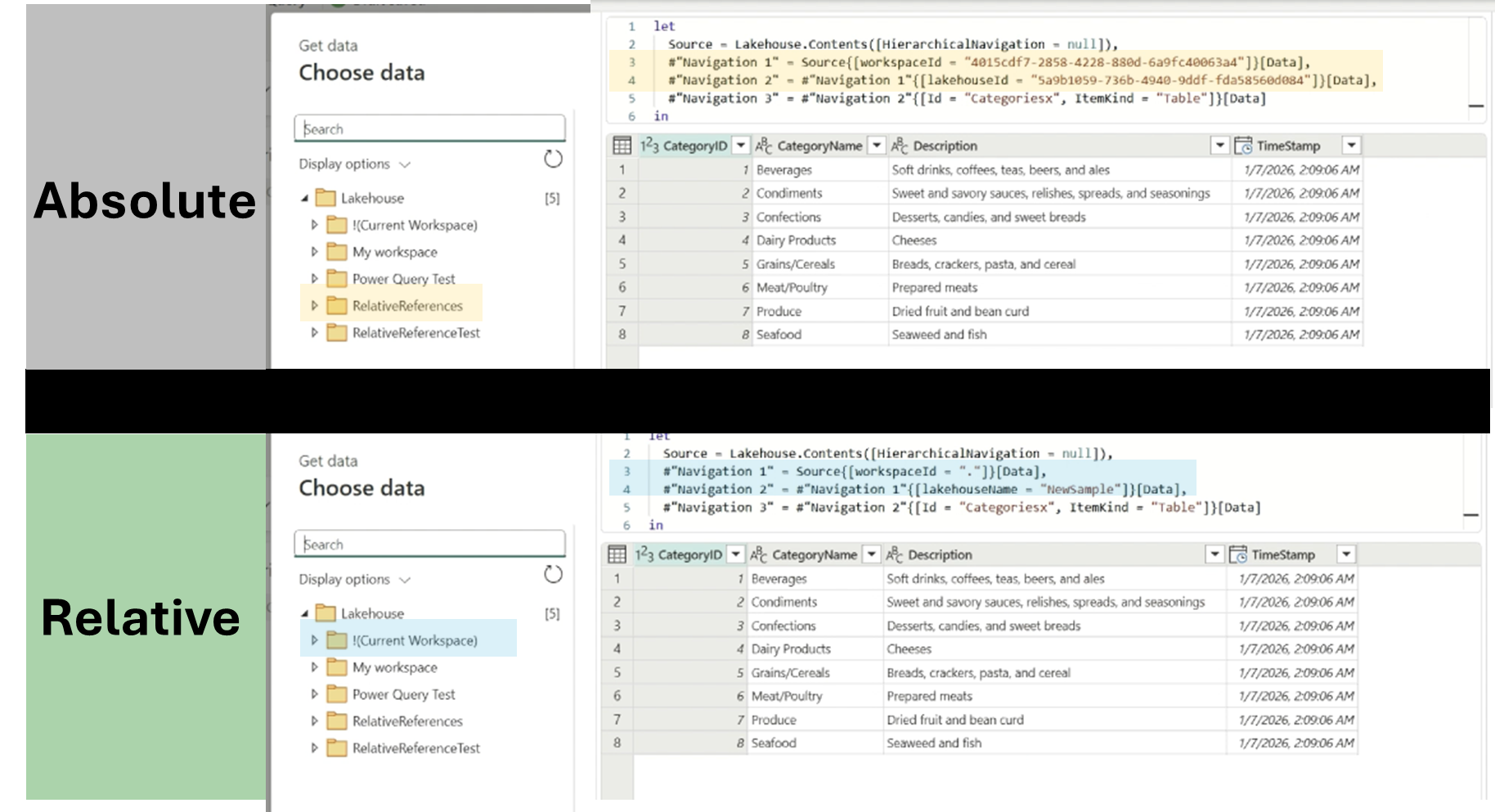
Figure: Diagram comparing the possible experiences between absolute and relative references and the M script crated for each.
Why it matters
This approach ensures that when you move your solution from development to testing or production, no script changes are required. Your Dataflow will continue to work based on item names, making deployments seamless without adding any extra components
Learn more
Check out the documentation for Fabric Lakehouse, Fabric Warehouse, and Fabric SQL connectors for more information.
Introducing Dataflow Gen2’s just-in-time publishing mechanism
Previously, Dataflow Gen2 required you to manually trigger a publishing operation before running or refreshing a dataflow whenever unpublished changes were present.
With the updated experience, the run/refresh operation now automatically checks if a publication is needed and completes it as part of the job. This simplifies the workflow and ensures that runs succeed without requiring an explicit publish step.
You can still rely on the following behaviors:
- Explicit publish control: You can continue to trigger a publish directly using the Publish job when you need full control.
- Saving in the UI: Saving a dataflow in the authoring UI still performs a publication as part of the save process.
- Longer first refresh: The first refresh after making changes may take longer, because publishing now happens automatically as part of that initial run.
- CI/CD deployments: When deploying across environments, a separate publishing step is no longer required. The first run in the target environment will be published automatically if needed.
Learn more about this new mechanism from: Dataflow Gen2 with CI/CD and Git integration.
Modern Evaluator for Dataflow Gen2 (Generally Available)
The Modern Query Evaluation Engine (Modern Evaluator) for Dataflow Gen2 brings substantial performance and reliability improvements to data transformation workloads across Microsoft Fabric.
Built on .NET 8, this engine delivers faster execution, more efficient processing, and improved scalability for complex dataflows. As part of its GA rollout, the Modern Evaluator now supports more than 80 connectors, significantly expanding coverage across enterprise and SaaS data sources.
Key improvements in this release
- Broad connector support: the Modern Evaluator now works with 80+ connectors—including Azure Data Explorer, Lakehouse, Warehouse, Salesforce, Google Analytics, Fabric-native sources, and many more. This includes some SQL-based connectors such as Fabric SQL Database, SQL Server Database and others. This expanded coverage ensures that most Dataflow Gen2 scenarios can benefit from the improved engine.
- Faster and more efficient Web requests: Enhancements to Web connector handling result in lower overhead for HTTP-based data sources. Customers can expect smoother query execution and improved resilience when working with REST APIs or other web endpoints-based data sources. Customers can expect smoother query execution and improved resilience when working with REST APIs or other web endpoints. ‑based data sources. Customers can expect smoother query execution and improved resilience when working with REST APIs or other web endpoints.
Learn more about the modern query evaluator in Dataflow Gen2 and its compatible connectors: Modern Evaluator for Dataflow Gen2 with CI/CD.
Incremental copy from Fabric Lakehouse now supports both CDF and watermark-based methods in Copy job
When performing incremental copy from a Fabric Lakehouse table, we strongly recommend using CDF (Delta Change Data Feed) to capture row inserts, updates, and deletions, and replicate them to supported destinations.
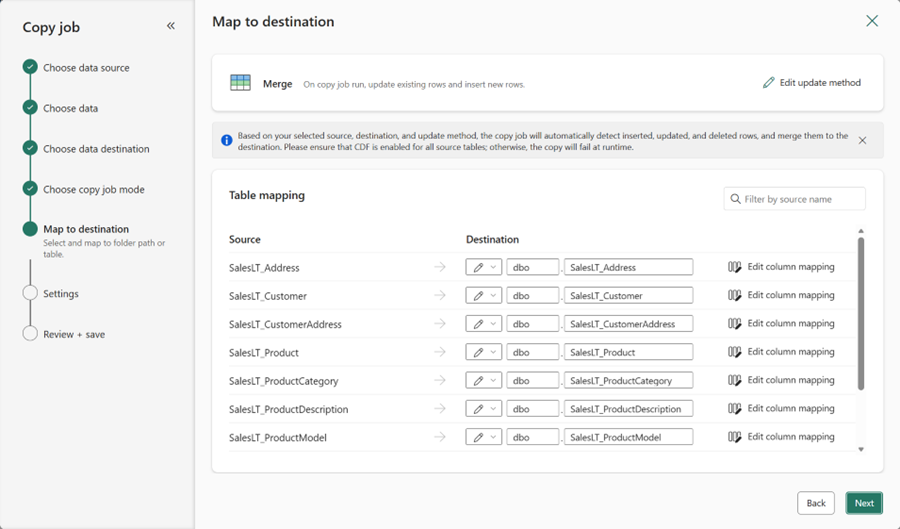
Figure: Incremental copy from Fabric Lakehouse via CDF.
However, you can now also optionally use watermark-based incremental copy without enabling CDF. In this mode, you can select an incremental column for each table to identify changes.
To enable this, go to the Advanced Settings button after creating the Copy job, where you will have the option to switch from CDF to using a watermark column.
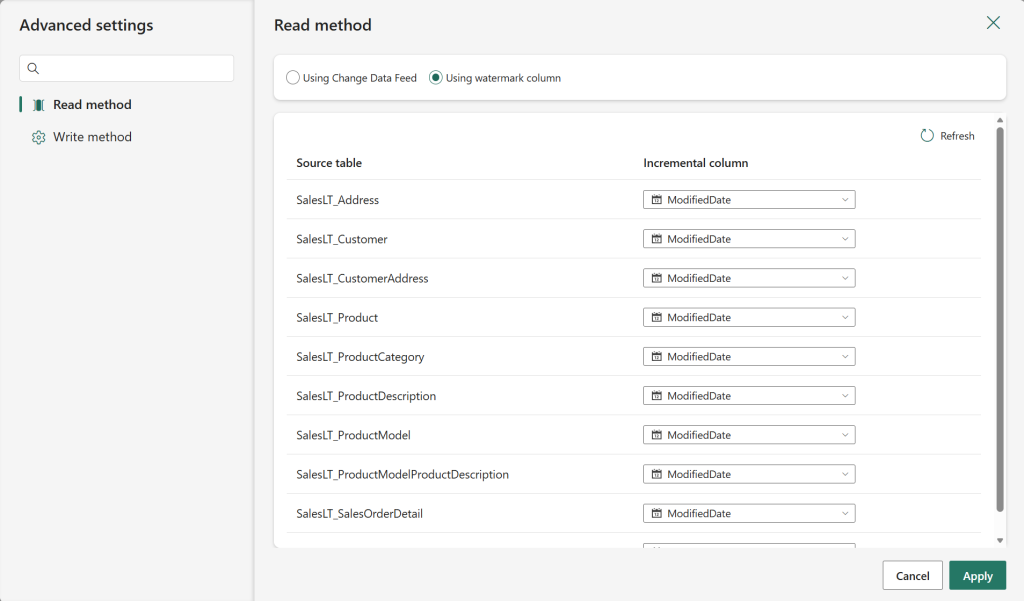
Figure: Incremental copy from Fabric Lakehouse via watermark-based method
Learn more from the What is Copy job in Data Factory documentation.
SAP Datasphere outbound for Amazon S3 and Google cloud storage in Copy job
Previously, you could use SAP Datasphere Outbound for ADLS Gen2 in Copy job to perform CDC replication from SAP to any supported destination. For more details, see Tutorial: Copy job with SAP Datasphere Outbound (Preview).
You can now also use SAP Datasphere Outbound for Amazon S3 and SAP Datasphere Outbound for Google Cloud Storage, expanding staging storage support across multiple clouds so you can choose the option that best fits your scenario.
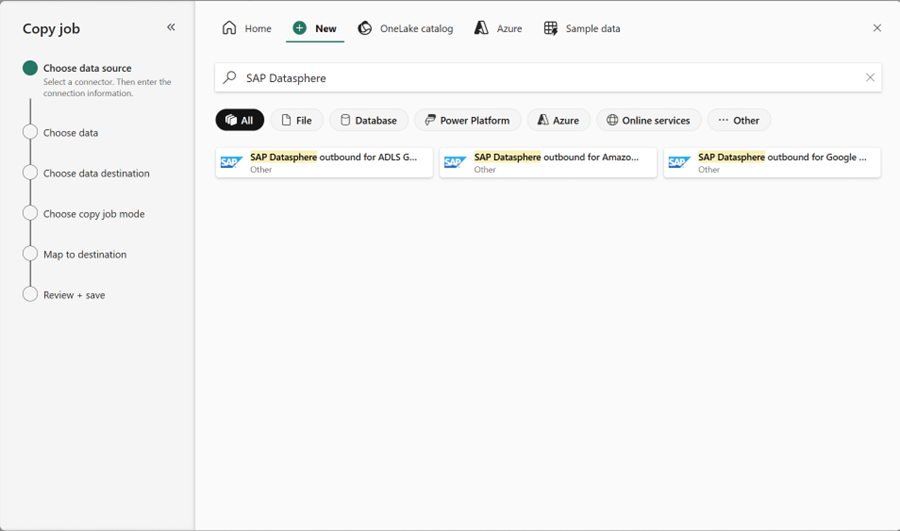
Figure: Selecting Copy data from SAP Datasphere Outbound for Amazon S3 and Google Cloud Storage
Learn more from Tutorial: Copy job with SAP Datasphere Outbound (Preview) – Microsoft Fabric | Microsoft Learn
Column Mapping in CDC for Copy Job
Column mapping from source to destination is now supported during CDC replication within the Copy job. This is useful when you want to rename columns, change data types, or otherwise customize the schema in the destination store.
Column mapping now is supported across all data movement patterns in Copy job, including full copy, watermark-based incremental copy and CDC replication.
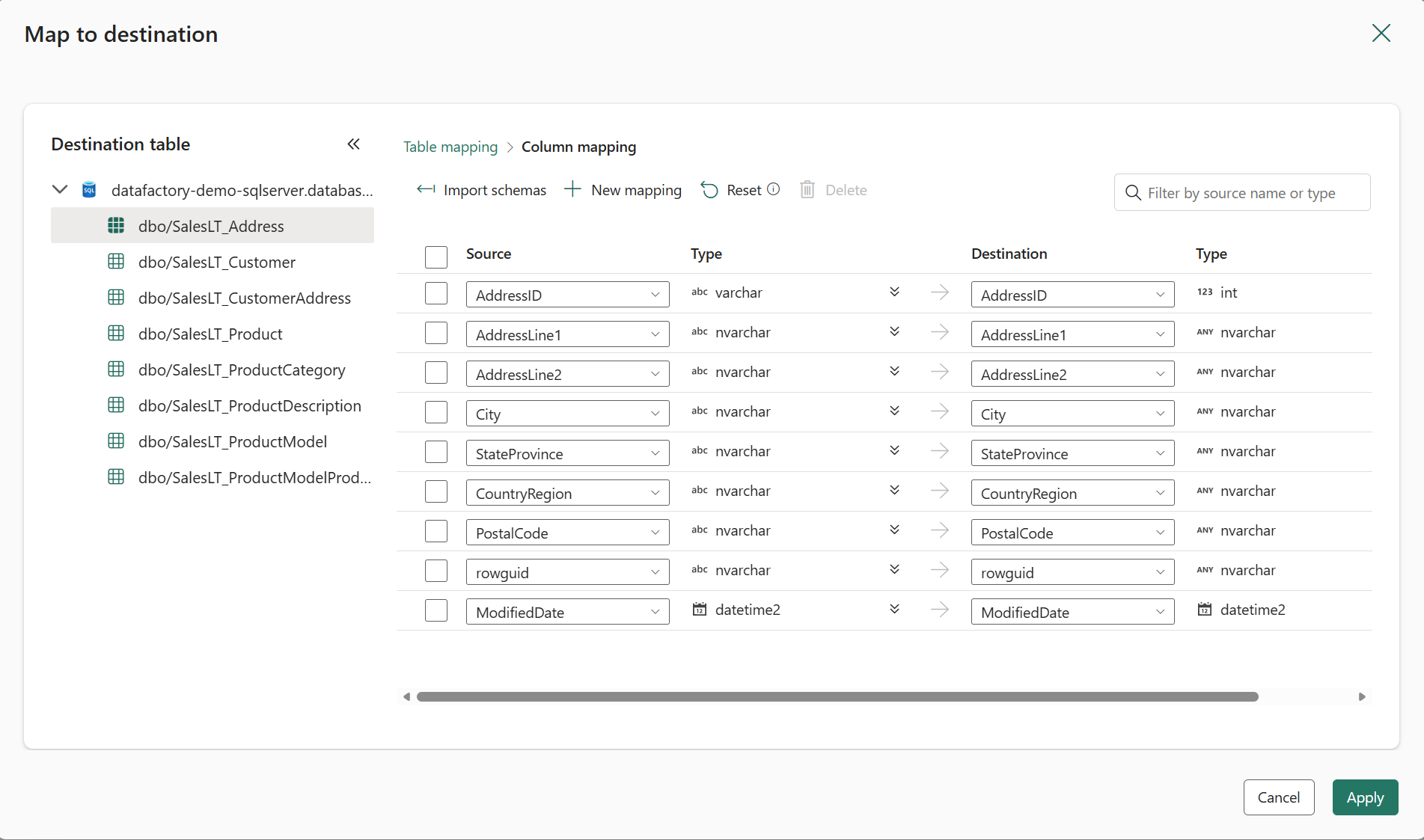
Figure: Column Mapping in Copy job.
Learn more from Change data capture (CDC) in Copy Job – Microsoft Fabric | Microsoft Learn.
Rowversion now supported as an incremental column in SQL database Copy job
Copy job simplifies data movement from many sources to many destinations by natively supporting multiple delivery styles, including bulk copy, incremental copy, and change data capture (CDC) replication. For incremental copy, the first run performs a full copy, and subsequent runs transfer only new or changed data from the last run to save time and resources.
If CDC is not enabled on your database, you must select an incremental column for each table. This column acts as a marker, allowing Copy job to identify rows that are new or updated since the last run. Previously, this column was limited to date/time values or increasing numeric values.
You can now also select RowVersion as the incremental column when performing incremental copy from SQL Server, Azure SQL Database, SQL Managed Instance, or SQL in Fabric.
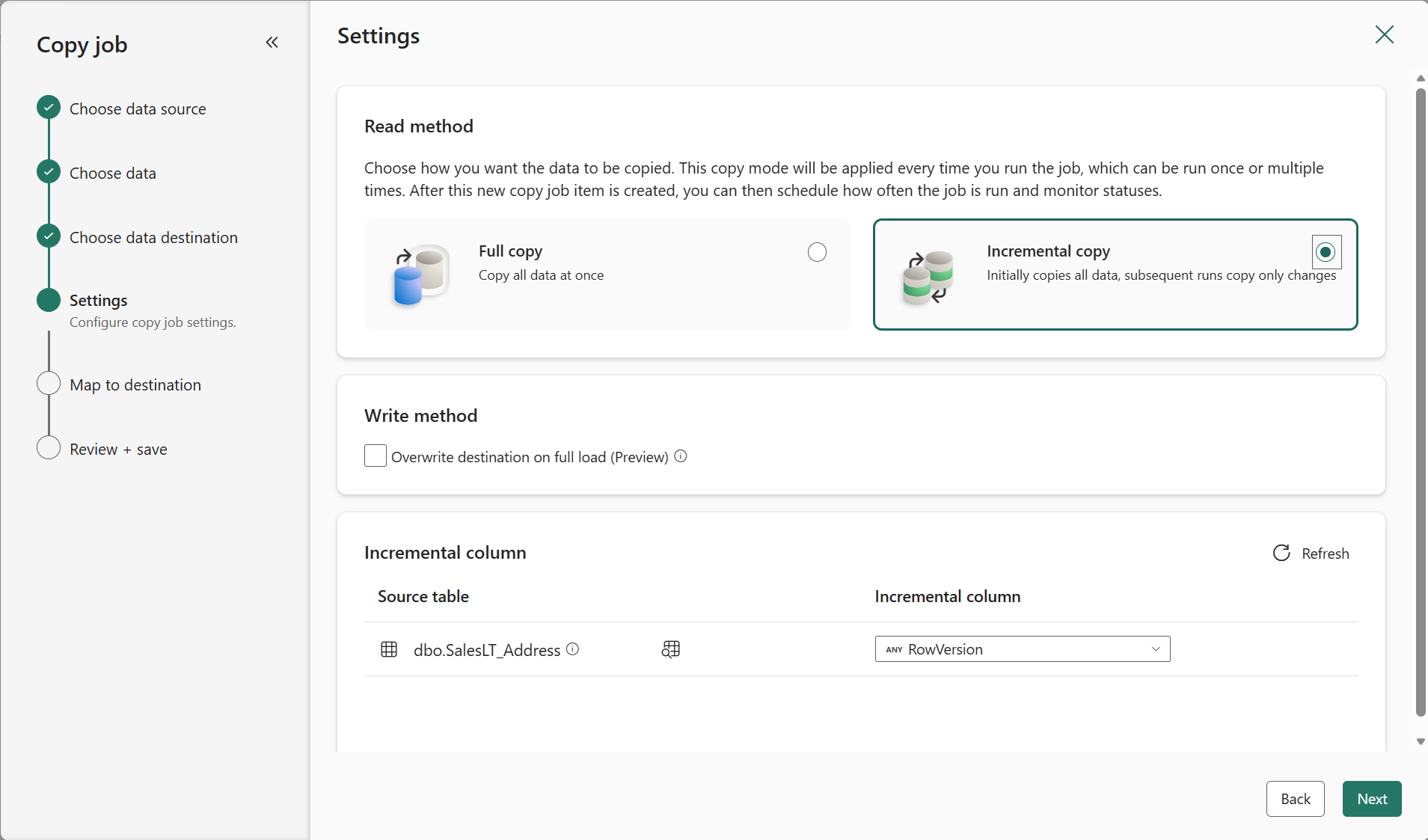
Figure: Selecting RowVersion to identify changes when incremental copy from SQL database
Learn more from What is Copy job in Data Factory – Microsoft Fabric | Microsoft Learn.
Copy job activity now supports Service Principal and Workspace identity authentication
We are expanding authentication support in the Copy job activity in pipeline, making it easier than ever to securely connect, integrate, and move data across a broad range of enterprise and SaaS systems. This enhancement reflects our continued commitment to delivering an enterprise-ready data integration platform that balances security, flexibility, and ease of use.
The Copy job activity now supports additional authentication methods to your Copy job item in pipeline, enabling customers to choose the security model that best fits their organizational standards and compliance requirements. The added authentication types are service principal and workspace identity.
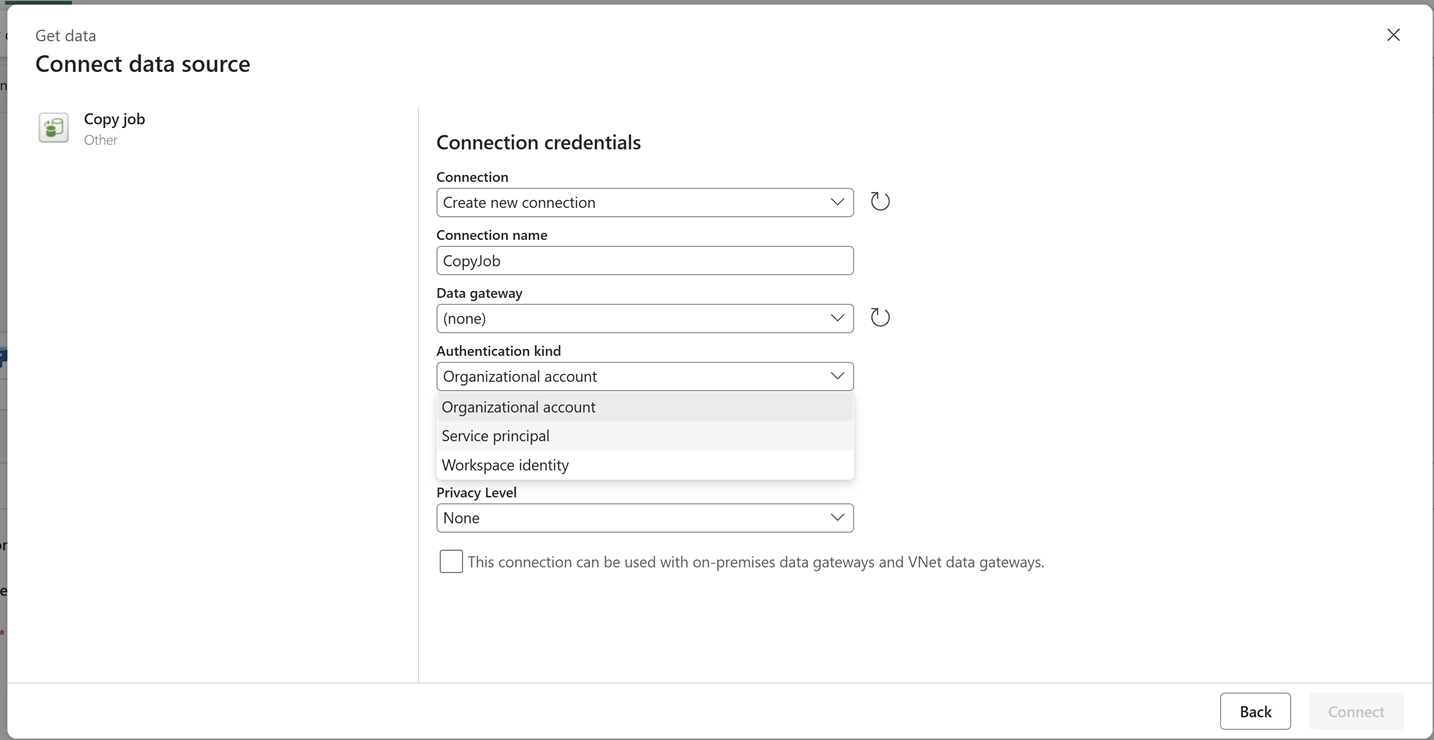
Figure: Authentication kind in Copy job activity.
Authentication is no longer just a connection detail; it is a foundational requirement for enterprise-scale data integration. With expanded authentication support in the Copy job activity, customers can now:
- Strengthen security posture by minimizing long-lived secrets and adopting identity-based access.
- Accelerate time to value by connecting to copy job items using native, first-class authentication mechanisms.
- Simplify compliance and audits through standardized authentication patterns aligned with enterprise security policies.
- Improve operational reliability by leveraging managed identity and token-based access.
These improvements are especially impactful for organizations operating in regulated industries or managing large-scale hybrid environments where security consistency is non-negotiable.
Getting started
The new authentication options are available within the Copy job activity setting in Fabric Data Factory. Explore these new capabilities and start standardizing modern, secure authentication patterns across your data integration workflows. Learn more about the authentication capability in copy job activity.
Parallel Read Support for Large CSV Dataset
As we continue improving ingestion performance, we’ve introduced a new enhancement for reading CSV datasets in Data Factory. It significantly boosts ingestion throughput for large CSV files—a common customer challenge when a single file can’t fully take advantage of parallel reads.
With this update, Data Factory can now read large CSV files in parallel when the format allows for safe partitioning, delivering better performance and scalability while preserving correctness. By using your multiline configuration, the service can determine how to split the file and process it in parallel, dramatically improving read performance.
When multiline behavior is explicitly defined, the service can:
- Safely identify record boundaries even in large files.
- Partition the file into multiple logical chunks.
- Read and process those chunks concurrently.
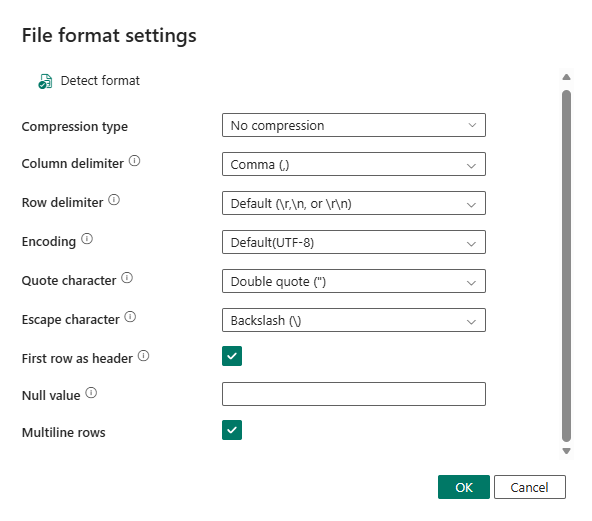
Figure: Multiline rows setting for reading delimited text.
This enables higher throughput without compromising data correctness.
Why multiline configuration matters
CSV files that contain multiline records such as fields with embedded line breaks enclosed in quotes which require special handling. Without explicit configuration, the system must assume the most conservative parsing model, which prevents parallelization.
By specifying multiline information on the source, users provide the necessary context for the service to:
- Correctly interpret row boundaries.
- Avoid recording corruption during parallel reads.
- Confidently enable parallelism where it is safe.
This opt-in design ensures that performance improvements are applied only when they are valid for the data format.
Getting started
We encourage customers working with large CSV datasets to review the source configurations and unlock the benefits of this new capability to take advantage of parallel reads for large CSV files. Learn more about the performance optimization for copying delimited text files.
Adaptive Performance Tuning: Intelligent Optimization for Data Movement (Preview)
Adaptive Performance Tuning is designed to intelligently optimize data movement performance based on your configuration and runtime context. This feature represents a major step forward in making performance tuning simpler, safer, and more effective without requiring deep manual expertise or trial-and-error adjustments.
As data volumes grow and integration scenarios become more diverse, achieving optimal performance has become increasingly complex. Customers must balance throughput, reliability, cost, and data correctness across a wide range of sources, destinations, formats, and network environments. Adaptive Performance Tuning addresses this challenge by allowing the service to dynamically apply performance optimizations informed by customer configurations and real execution conditions.
Adaptive Performance Tuning is designed with safety and predictability as first principles. Optimizations are applied only when they are compatible with the configured semantics of the task, ensuring that performance gains do not compromise data accuracy or expected behavior.
As a preview feature, Adaptive Performance Tuning is:
- Explicitly opt-in, giving customers full control.
- Non-breaking, with no required changes to existing configurations.
- Incrementally evolving, informed by customer feedback and real-world use.
Adaptive Performance Tuning is part of a broader vision to make Data Factory a more intelligent, self-optimizing platform. By combining rich configuration signals with service-side intelligence, we aim to help customers focus less on infrastructure tuning and more on delivering business value from their data.
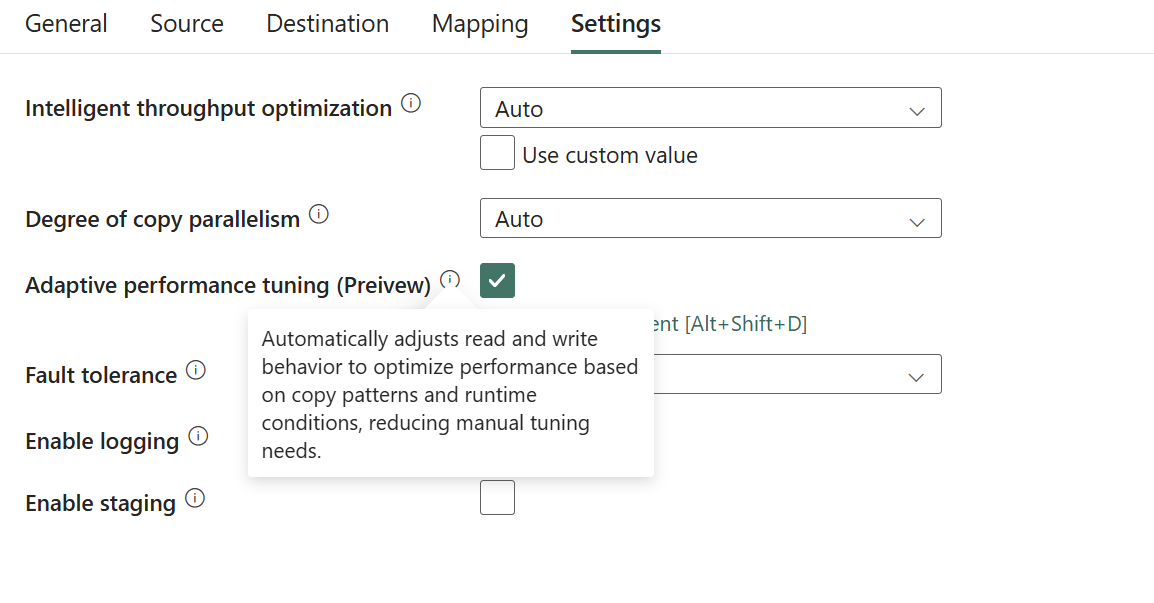
Figure: Adaptive performance tuning setting.
As the preview evolves, we plan to expand the range of supported optimization scenarios, continuously improving performance outcomes.
Getting started with the preview
Customers can enable Adaptive Performance Tuning directly within their pipeline settings and begin benefiting from service-driven performance optimization. We encourage users to try the preview, monitor performance improvements, and share feedback to help shape the future of this capability.
Learn more about the Adaptive Performance Tuning feature.
Other
Fabric VS Code extension for browsing, editing item definitions, and MCP support
The Microsoft Fabric extension for Visual Studio Code has been enhanced to improve the user experience in exploring, editing, and managing Fabric items directly within the editor and through integration with Fabric MCP server and GitHub Copilot chat.
- Browse workspace folders: Users can now view and drill into folders and their contents within the workspace to better understand the organization of Fabric content without leaving VS Code.
- View and edit Fabric item definitions: The extension supports viewing item definitions in read-only mode by default, but you can enable editing through extension’s settings. Changes saved directly update the Fabric item in the workspace, but users should proceed cautiously to avoid breaking changes.
- Fabric MCP server integration: The Fabric MCP server extension can be enabled alongside the Fabric and GitHub Copilot Chat extensions, offering tailored tools for working with Fabric artifacts, including CRUD operations, generating design documents, and accessing Microsoft Fabric documentation through a specialized agent mode.
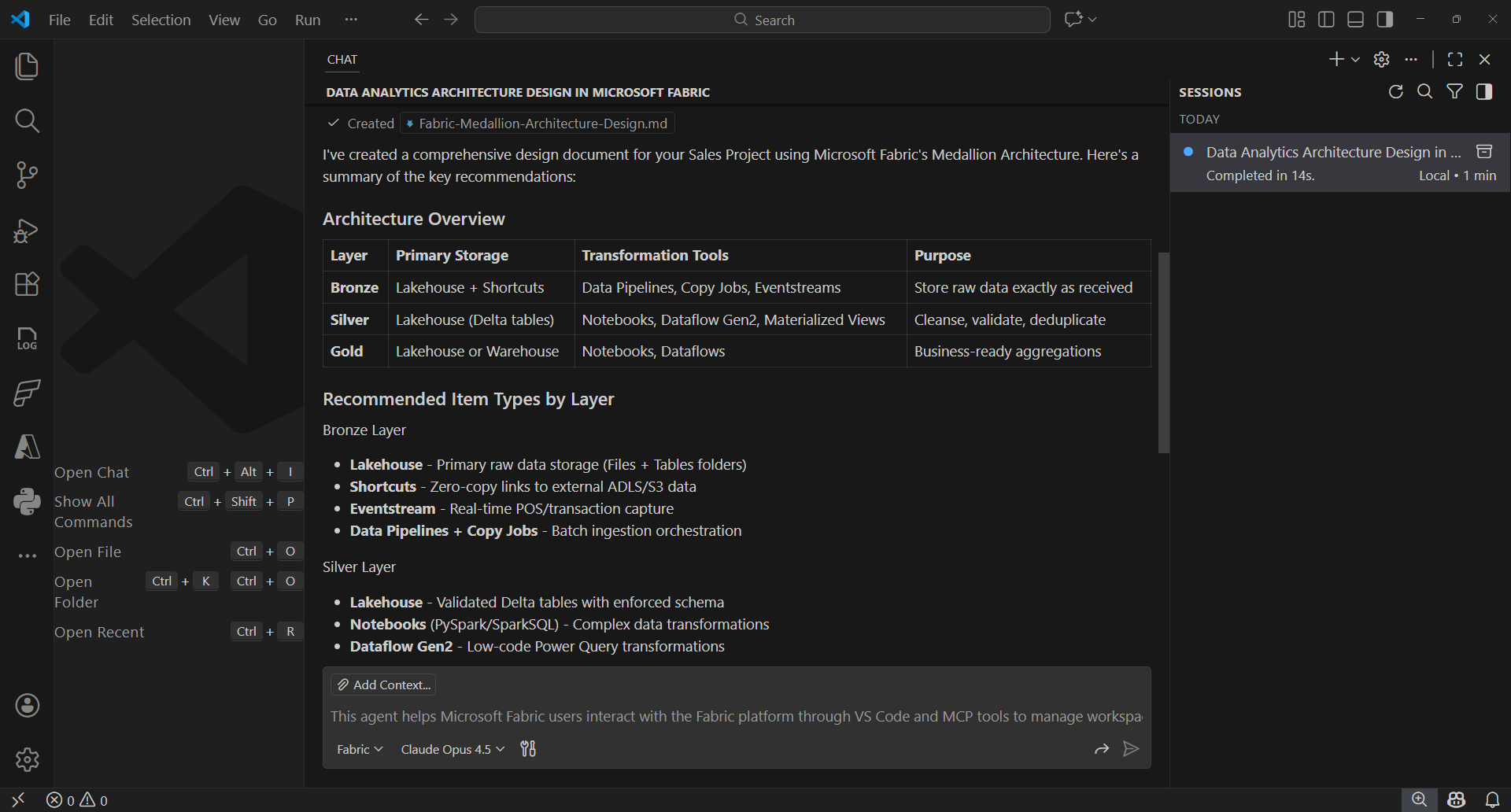
Figure: Using Fabric MCP in VS Code to design a data analytics solution.
Learn more about the new features enabled for Fabric extension for VS code.
That’s a wrap for February!
We hope these updates help you work faster, build with confidence, and get even more value from Microsoft Fabric. With FabCon right around the corner, it’s an exciting time to connect with the community, learn from experts, and see these capabilities come to life. If you’re heading to Atlanta, we can’t wait to see you there—and if not, there’s still plenty to dig into until next month’s update.
Related blog posts
Fabric February 2026 Feature Summary
Agentic Fabric: How MCP is turning your data platform into an AI-native operating system
Something fundamental is changing in how developers interact with data platforms. Not a feature update, not a UI refresh, but a shift in the interface itself.
Evolving Agentic Applications on Microsoft Fabric: From Automated Deployment to Integrating Data Agents
In our previous post, Operationalizing Agentic Applications with Microsoft Fabric, we focused on a core challenge teams encounter once an agentic application moves beyond a proof of concept: operational reality. Specifically, how do you observe, govern, evaluate, and analyze what agents are doing once they interact with real users, data, and business processes at scale? … Continue reading “Evolving Agentic Applications on Microsoft Fabric: From Automated Deployment to Integrating Data Agents”
Microsoft Fabric
Accelerate your data potential with a unified analytics solution that connects it all. Microsoft Fabric enables you to manage your data in one place with a suite of analytics experiences that seamlessly work together, all hosted on a lake-centric SaaS solution for simplicity and to maintain a single source of truth.
Get the latest news from Microsoft Fabric Blog
This will prompt you to login with your Microsoft account to subscribe
Visit our product blogs
View articles by category
- Activator
- AI
- Announcements
- Apache Iceberg
- Apache Spark
- Community
- Community Challenge
- Data Engineering
- Data Factory
- Data Lake
- Data loss prevention
- Data Science
- Data Warehouse
- Databases
- Developer
- Fabric IQ
- Fabric ML
- Fabric platform
- Fabric Public APIs
- Fabric Workload
- Information protection
- Lakehouse
- Machine Learning
- Microsoft Fabric
- Monthly Update
- OneLake
- Power BI
- Power BI reports
- Real-Time Intelligence
- Roadmap
- Security and Compliance
- semantic model
- Uncategorized
View articles by date
- April 2026
- March 2026
- February 2026
- January 2026
- December 2025
- November 2025
- October 2025
- September 2025
- August 2025
- July 2025
- June 2025
- May 2025
- April 2025
- March 2025
- February 2025
- January 2025
- December 2024
- November 2024
- October 2024
- September 2024
- August 2024
- July 2024
- June 2024
- May 2024
- April 2024
- March 2024
- February 2024
- January 2024
- December 2023
- November 2023
- October 2023
- September 2023
- August 2023
- July 2023
- June 2023
- May 2023
- April 2023
- March 2023
- February 2023
- January 2023
- December 2022
- November 2022
- October 2022
- September 2022
- August 2022
- July 2022
- June 2022
- May 2022
- April 2022
What's new
- Microsoft 365
- Games
- Surface Pro 9
- Surface Laptop 5
- Surface Laptop Studio
- Surface Laptop Go 2
- Windows 11 apps
Microsoft Store
Education
- Microsoft in education
- Devices for education
- Microsoft Teams for Education
- Microsoft 365 Education
- Office Education
- Educator training and development
- Deals for students and parents
- Azure for students
Business
- Microsoft Cloud
- Microsoft Security
- Azure
- Dynamics 365
- Microsoft 365
- Microsoft Advertising
- Microsoft Industry
- Microsoft Teams
Developer & IT
- Developer Centre
- Documentation
- Microsoft Learn
- Microsoft Tech Community
- Azure Marketplace
- AppSource
- Microsoft Power Platform
- Visual Studio
Company
- © 2026 Microsoft
- Fabric Platform